
As an Amazon Associate I earn from qualifying purchases.
You’ve just invested in one of the most impressive productivity monitors on the market — the Dell UltraSharp U3225QE. With its 31.5-inch 4K IPS panel, 120 Hz refresh rate, Thunderbolt 4 hub, and HDR support, it’s a powerhouse for creative professionals, developers, and anyone who demands pixel-perfect clarity. But a great monitor is only as good as the ecosystem around it. Whether you need a secondary display for reference material, a proper mount to free up desk space, or the right cables to unlock every feature, the accessories you pair with the U3225QE can make or break your workflow.
In this guide, we review the Dell UltraSharp U3225QE itself and then walk through four budget-friendly secondary monitors that pair beautifully beside it — giving you the multi-screen setup your home office deserves.
Best for: Creative professionals, developers, and remote workers who want a single-cable workstation with room to add secondary screens
Why Accessories Matter for the Dell UltraSharp U3225QE
The U3225QE isn’t just a display — it’s a docking station. Its Thunderbolt 4 port delivers up to 140 W of power to your laptop, passes data at 40 Gbps, and daisy-chains to a second monitor. That means the right secondary display can plug directly into the U3225QE’s downstream ports, eliminating cable clutter entirely. But you need to choose a companion monitor whose resolution, size, and connectivity complement — rather than clash with — your primary 4K panel.
Below, we start with a deep look at the U3225QE itself, then review four secondary monitors at different sizes and price points that make excellent companions.
Dell UltraSharp U3225QE 31.5-Inch 4K Thunderbolt Hub Monitor — The Centerpiece

The Dell UltraSharp U3225QE is the monitor everything else in this guide revolves around. At 31.5 inches with a 3840 × 2160 resolution, text is razor-sharp and photo editing is a joy. The 120 Hz refresh rate — unusual for a productivity-first panel — makes scrolling through long documents and code feel buttery smooth. Dell’s IPS Black technology delivers deeper blacks than traditional IPS, narrowing the gap with OLED without the burn-in risk.
The real magic is the connectivity suite. Thunderbolt 4 upstream means one cable from your laptop handles video, data, and charging. There are multiple USB-C and USB-A downstream ports, plus an RJ-45 Ethernet jack — effectively replacing a standalone dock. You can daisy-chain a second display via the downstream Thunderbolt port, which is exactly where the companion monitors below come in.
Color accuracy is factory-calibrated to Delta E < 2, covering 98 % of DCI-P3. HDR 600 certification adds punch to video content, though the local dimming zones are limited compared to mini-LED panels. The stand offers full ergonomic adjustability — tilt, swivel, pivot, and height — and VESA 100 × 100 compatibility means you can mount it on an arm if you prefer.

On the downside, the monitor is heavy (about 20 lbs with stand), and the built-in speakers are tinny — you’ll want external audio. One reviewer summed it up well: “This monitor replaced my laptop dock, my old 27-inch display, AND my USB hub. One cable to rule them all.” If you’re building a serious home office, the U3225QE is the foundation.
Pros:
- Thunderbolt 4 hub replaces a standalone dock
- 120 Hz 4K IPS Black panel with excellent color accuracy
- Daisy-chain support for a second monitor
- Full ergonomic stand plus VESA mount compatibility
Cons:
- Heavy and large footprint with the included stand
- Built-in speakers are underwhelming
- HDR local dimming could be more refined
Best for: Professionals who want a single-cable workstation with top-tier color accuracy and hub functionality.
Philips 221V8LB 22-Inch Full HD Monitor — Compact Secondary Display

If desk space is at a premium, the Philips 221V8LB is a smart companion for the U3225QE. At 22 inches and 1080p, it’s compact enough to sit in portrait orientation beside your main monitor — perfect for Slack, email, or a terminal window. The 100 Hz refresh rate is a nice step up from the standard 60 Hz you’d expect at this price tier, and the thin bezels keep the overall footprint minimal.
Connectivity is basic: one HDMI and one VGA port. You’ll need an HDMI cable from the U3225QE’s downstream port (or a USB-C to HDMI adapter if you’re daisy-chaining). The stand is tilt-only, so if you want height adjustment or portrait mode, plan on a VESA-compatible arm — the monitor supports 100 × 100 VESA mounting.
Color accuracy is acceptable for office work but won’t satisfy photo editors. The LowBlue mode is genuinely useful for long work sessions, reducing eye strain without making the screen look overly yellow. One buyer noted: “For the price, this little Philips punches above its weight. I use it vertically next to my main monitor and it’s perfect for Discord and docs.”

Pros:
- Ultra-compact 22-inch form factor
- 100 Hz refresh rate at this price point
- VESA mountable for portrait orientation
- Effective LowBlue eye-care mode
Cons:
- Tilt-only stand — no height or pivot adjustment
- Limited to HDMI and VGA inputs
- 1080p resolution shows pixel density difference next to a 4K panel
Best for: Budget-conscious users who need a small secondary screen for chat, email, or reference documents.
Philips 271V8LB 27-Inch Full HD Monitor — The Size-Matched Companion

Want a secondary display that’s closer in physical size to your 31.5-inch Dell? The Philips 271V8LB at 27 inches strikes a nice balance. The frameless design means the two monitors sit side by side with minimal bezel gap, creating a near-seamless dual-screen experience. At 1080p on 27 inches, the pixel density is noticeably lower than the U3225QE — text won’t be as crisp — but for video calls, dashboards, or browser windows, it’s perfectly serviceable.
Like its 22-inch sibling, the 271V8LB runs at 100 Hz and offers HDMI plus VGA connectivity. The stand is again tilt-only, which is the biggest compromise at this size. A 27-inch panel really benefits from height adjustment, so budgeting for a monitor arm is strongly recommended. VESA 100 × 100 support makes that straightforward.
Philips includes a 4-year advance replacement warranty, which is unusually generous and adds peace of mind. The Eye Care features — LowBlue mode and flicker-free backlighting — are present and effective. A reviewer shared: “I bought two of these for a triple-monitor setup. They’re not fancy, but they’re reliable, and the 4-year warranty sealed the deal for me.”

Pros:
- 27-inch frameless design pairs well visually with the U3225QE
- 4-year advance replacement warranty
- 100 Hz refresh rate
- Affordable entry point for a larger secondary screen
Cons:
- 1080p at 27 inches yields lower pixel density
- Tilt-only stand needs upgrading for ergonomic setups
- No USB-C input — requires HDMI adapter from daisy-chain
Best for: Users who want a size-matched secondary display without spending a fortune.
Philips 24-Inch 100Hz Full HD Monitor — The Sweet-Spot Sidecar

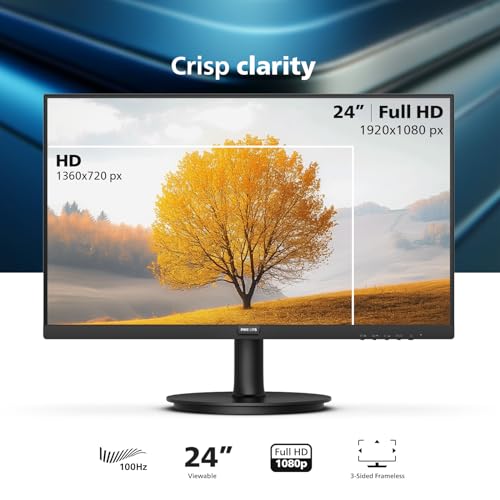
The 24-inch Philips monitor hits what many consider the sweet spot for a secondary display. It’s large enough to comfortably run a full application window, yet small enough that it doesn’t compete with your primary 31.5-inch Dell for visual attention. At 1080p on 24 inches, the pixel density is noticeably better than the 27-inch model — text looks cleaner and UI elements feel more proportional.
The frameless design is consistent across Philips’ V-line, and it looks clean next to the Dell’s slim bezels. You get the same HDMI and VGA inputs, the same 100 Hz panel, and the same 4-year warranty. The stand is — you guessed it — tilt-only, but at 24 inches the ergonomic compromise is less painful than on a larger screen.
This is an excellent choice if you plan to mount it on a dual-monitor arm alongside the U3225QE. The lighter weight (under 7 lbs without stand) means even budget monitor arms can handle it without sagging. As one reviewer put it: “Nothing flashy, just a solid monitor that does exactly what I need. Set it up in 5 minutes and forgot about it — which is the best compliment I can give.”
Pros:
- Best pixel density of the three Philips options at 1080p
- Lightweight — easy to mount on budget arms
- 4-year advance replacement warranty
- Frameless design for clean multi-monitor aesthetics
Cons:
- Tilt-only stand (consistent limitation across the V-line)
- No USB-C connectivity
- Color gamut is sRGB-only — not for color-critical work
Best for: Users who want the best balance of size, pixel density, and value in a secondary monitor.
Samsung Essential S3 27-Inch Curved FHD Monitor — The Immersive Alternative
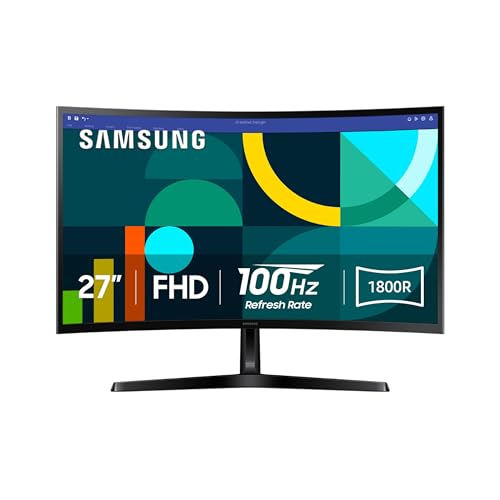
If you want your secondary monitor to pull double duty for after-hours gaming or media consumption, the Samsung Essential S3 brings something the Philips lineup doesn’t: an 1800R curved panel. The curvature wraps the edges of the screen toward you, reducing peripheral distortion and creating a more immersive viewing experience — especially nice for widescreen video content.
Samsung’s Game Mode optimizes input lag and contrast for gaming, making this a viable casual gaming display when you’re off the clock. The 100 Hz refresh rate and AMD FreeSync support keep things smooth for lighter titles. The Advanced Eye Comfort feature includes flicker-free technology and a blue-light filter, similar to Philips’ LowBlue mode.
Connectivity mirrors the Philips monitors — HDMI and VGA — so you’ll need the same adapter strategy for connecting to the U3225QE’s downstream ports. The curved form factor does mean it looks a bit different sitting next to the flat Dell panel, which may bother aesthetics-minded users. One reviewer observed: “The curve is subtle but makes a real difference for long work sessions. My eyes feel less fatigued at the end of the day compared to my old flat panel.”

Pros:
- 1800R curve reduces eye strain and adds immersion
- Game Mode with FreeSync for casual gaming
- Samsung build quality and brand reliability
- Advanced Eye Comfort features
Cons:
- Curved panel looks visually mismatched next to a flat primary monitor
- 1080p at 27 inches — same pixel density concern as the Philips 27-inch
- Stand is basic with limited adjustability
Best for: Users who want a secondary display that moonlights as a casual gaming or media monitor.
Essential Accessories to Complete Your U3225QE Setup
Beyond a secondary monitor, here are the accessories categories you should consider to fully unlock the U3225QE’s potential:
Thunderbolt 4 / USB-C Cables
The U3225QE ships with a Thunderbolt 4 cable, but if you need a longer run (the included cable is typically 1 meter), invest in a certified Thunderbolt 4 cable rated for 40 Gbps. Avoid generic USB-C cables — they may not support the full bandwidth needed for 4K at 120 Hz plus data and power delivery simultaneously.
Monitor Arms and Mounts
The U3225QE weighs about 20 lbs without its stand and uses a standard VESA 100 × 100 pattern. A heavy-duty gas-spring monitor arm rated for at least 25 lbs will free up significant desk space and let you position the screen at the perfect height. For a dual-monitor setup, look for arms with independent adjustment for each screen — your secondary display will likely be lighter and smaller.
USB-C to HDMI Adapters
If you’re daisy-chaining a secondary monitor that only has HDMI input (like all four options reviewed above), you’ll need a USB-C to HDMI adapter or cable from the U3225QE’s downstream USB-C port. Look for one that supports at least 4K at 60 Hz to future-proof, even if your secondary monitor is 1080p.
External Speakers or a DAC
The U3225QE’s built-in speakers are functional for system notifications but inadequate for music, video calls, or media. A compact desktop speaker set or a USB DAC paired with good headphones will dramatically improve your audio experience.
Webcam
While the U3225QE doesn’t have a built-in webcam, its slim top bezel accommodates clip-on webcams nicely. A 1080p or 4K webcam centered on your primary display ensures you’re looking directly at the camera during video calls.
Cable Management
With a Thunderbolt hub monitor, you’ll have fewer cables than a traditional setup — but you’ll still have power, possibly an Ethernet cable, and connections to peripherals. Under-desk cable trays and adhesive cable clips keep things tidy.
How to Choose the Right Secondary Monitor
Pairing a secondary display with a premium 4K monitor requires some thought. Here are the key factors:
Size: A 22–24 inch secondary works well in portrait orientation for code or documents. A 27-inch secondary is better in landscape for spreadsheets or video.
Resolution: Ideally, you’d match the pixel density of your primary monitor, but that would mean a 4K secondary — which defeats the purpose of saving money. At 1080p, 24 inches offers the best text clarity. At 27 inches, you may want to increase Windows scaling to 125%.
Connectivity: The U3225QE’s downstream ports include USB-C and USB-A. Since most budget monitors only offer HDMI and VGA, plan for a USB-C to HDMI cable or adapter.
Mounting: Every secondary monitor reviewed here supports VESA 100 × 100 mounting. Given that their included stands are tilt-only, a monitor arm is a worthwhile investment for ergonomic positioning.
Aesthetics: Frameless designs (like the Philips V-line) minimize the visual gap between screens. Curved panels (like the Samsung S3) look different beside a flat primary — consider whether that bothers you.
Frequently Asked Questions
Can I daisy-chain a second monitor through the U3225QE? Yes. The U3225QE supports Thunderbolt daisy-chaining and also has a downstream DisplayPort output. If your secondary monitor has DisplayPort input, you can connect it directly. For HDMI-only monitors, use a USB-C to HDMI adapter from one of the downstream ports.
Do I need a special cable for 4K at 120 Hz? Yes. You need a Thunderbolt 4 or USB-C cable that supports 40 Gbps bandwidth. The cable included with the U3225QE handles this, but if you need a longer cable, make sure it’s certified for Thunderbolt 4.
Will a 1080p secondary monitor look bad next to a 4K primary? There will be a noticeable difference in text sharpness, especially if both monitors are the same physical size. Choosing a smaller secondary (22–24 inches) helps because the pixel density is higher. You can also adjust per-monitor scaling in Windows or macOS to minimize the jarring transition.
What VESA mount size does the U3225QE use? The Dell UltraSharp U3225QE uses a standard VESA 100 × 100 mm pattern. Make sure your monitor arm is rated for at least 25 lbs to safely support it.
Why Trust Us
Our editorial team spends dozens of hours researching monitor specifications, reading manufacturer documentation, and analyzing hundreds of verified buyer reviews across multiple retailers. We cross-reference connectivity specs to ensure compatibility recommendations are accurate, and we prioritize real-world usability over spec-sheet comparisons. We don’t accept free products from manufacturers, and our recommendations are based solely on value, build quality, and how well each product serves the reader’s needs. Every product in this guide was evaluated specifically for its role in a Dell UltraSharp U3225QE-centered workspace — not in isolation.


Leave a Reply