
As an Amazon Associate I earn from qualifying purchases.
Getting a new pair of premium wireless earbuds is exciting — but getting them configured correctly is what separates a good experience from a great one. The Samsung Galaxy Buds 4 Pro pack serious technology into a compact package: AI-powered Active Noise Cancellation 2.0, Hi-Res Audio, a 2-way speaker system, and optimized call quality. This guide walks you through every step of the setup process, from the moment you crack open the box to fine-tuning ANC profiles and touch controls. Whether you’re pairing with a Samsung Galaxy phone, another Android device, or even a non-Samsung platform, you’ll find clear instructions below.
Best for: Samsung Galaxy phone owners who want the deepest feature integration, plus any Android user seeking premium sound and noise cancellation
What’s in the Box
Before diving into software setup, take a moment to inventory everything inside the packaging. According to Samsung’s official product documentation, the Galaxy Buds 4 Pro box should contain:
- Galaxy Buds 4 Pro earbuds (left and right, pre-installed with medium ear tips)
- Charging case with built-in battery
- USB-C charging cable
- Extra ear tips (small and large sizes)
- Quick start guide and warranty card
Make sure the charging case has at least some charge before proceeding. Samsung recommends charging the case for at least 30 minutes if the LED indicator doesn’t light up when you open the lid. The LED on the front of the case shows charging status: red means low, green means sufficiently charged.
Step 1: Charge the Earbuds and Case
Plug the included USB-C cable into the bottom of the charging case and connect the other end to a USB power source. You can also place the case on a Qi-compatible wireless charging pad. The case’s front LED will pulse red while charging and turn solid green when full. Samsung’s documentation indicates a full charge from empty takes roughly two hours for the case.
While the case charges, the earbuds inside charge simultaneously. A full earbud charge provides up to approximately 6–7 hours of playback with ANC off, or around 4–5 hours with ANC on, based on Samsung’s published specifications. You don’t need a full charge to begin setup — 15–20 minutes should give you enough battery to complete the pairing and configuration process.
Step 2: Download the Galaxy Wearable App
The Galaxy Wearable app is the command center for your Buds 4 Pro. It’s required for accessing the full feature set, including ANC 2.0 configuration, equalizer settings, touch control customization, and firmware updates.
- Samsung Galaxy phones: The Galaxy Wearable app is typically pre-installed. If not, download it from the Galaxy Store or Google Play Store.
- Other Android phones: Download “Galaxy Wearable” from the Google Play Store. Note that some advanced features (like seamless device switching within the Samsung ecosystem) may be limited on non-Samsung devices.
- iOS devices: Samsung offers limited support through the Galaxy Buds app on the App Store, though feature parity with Android is not guaranteed.
Make sure the app is updated to the latest version before proceeding. This ensures compatibility with the Buds 4 Pro’s newest firmware.
Step 3: Pair the Galaxy Buds 4 Pro via Bluetooth
This is where the magic happens. Samsung has streamlined the pairing process significantly, especially for Galaxy phone users.
Pairing with a Samsung Galaxy Phone
1. Open the charging case lid near your unlocked Galaxy phone. The earbuds automatically enter pairing mode the first time the case is opened. 2. A pop-up notification should appear on your phone within a few seconds, displaying the Galaxy Buds 4 Pro and prompting you to connect. 3. Tap “Connect” on the pop-up. 4. The Galaxy Wearable app will launch automatically and walk you through initial setup, including agreeing to terms and selecting your preferred features. 5. Once connected, you’ll hear a confirmation tone in the earbuds.
This pop-up pairing experience is similar to what Apple offers with AirPods — if you’ve ever gone through that process, you’ll find this familiar. For those who recently set up Apple’s earbuds, our AirPods Pro first-day setup guide covers the comparable experience on the iOS side.
Pairing with a Non-Samsung Android Phone
1. Open the charging case lid. 2. If no pop-up appears, press and hold the touchpads on both earbuds for about 3 seconds while they’re in the case (some users report needing to place the buds in their ears first). The case LED will blink blue, indicating pairing mode. 3. On your phone, go to Settings → Bluetooth → Pair new device. 4. Select “Galaxy Buds 4 Pro” from the available devices list. 5. Open the Galaxy Wearable app to complete configuration.
Pairing with a PC or Tablet
The process mirrors standard Bluetooth pairing. Put the buds into pairing mode (case open, touch and hold both buds), then find them in your computer’s Bluetooth settings. On Windows, navigate to Settings → Bluetooth & devices → Add device. On a Samsung tablet, you’ll get the same seamless pop-up experience as on a Galaxy phone.

Step 4: Fit the Ear Tips Properly
Good fit is critical — it affects sound quality, ANC performance, and comfort. The Galaxy Buds 4 Pro ship with three sizes of ear tips (small, medium, large), with medium pre-installed.
Using the Ear Tip Fit Test
1. In the Galaxy Wearable app, navigate to “Earbud settings” → “Ear tip fit test.” 2. Insert both earbuds and tap “Start.” 3. The app plays a short test tone and uses the internal microphones to measure the seal. 4. Results will show either a good seal (green checkmark) or suggest trying a different tip size.
If you get a poor seal result, swap to a smaller or larger tip. A proper seal is especially important for ANC 2.0 to function at its best — without it, low-frequency noise cancellation suffers noticeably. Verified reviewers frequently emphasize that taking the time to find the right ear tip size dramatically improves the overall experience.
Step 5: Configure ANC 2.0 (Active Noise Cancellation)
The ANC 2.0 system on the Galaxy Buds 4 Pro is one of its headline features. Samsung’s documentation describes it as AI-driven, meaning it adapts to your environment in real time. Here’s how to set it up:
1. Open the Galaxy Wearable app. 2. Tap “Noise controls.” 3. You’ll see three primary modes:
- Active Noise Cancellation — blocks external sound. You can choose between “High” and “Adaptive” levels. Adaptive uses AI to adjust cancellation intensity based on ambient noise.
- Ambient Sound — lets outside sound through the microphones so you can hear announcements, conversations, or traffic. Adjustable on a volume slider.
- Off — disables both ANC and Ambient Sound for maximum battery life.
4. For most users, Adaptive ANC is the recommended starting point. It automatically increases cancellation in loud environments (like a subway) and reduces it in quieter settings (like an office).
Fine-Tuning ANC
Within the ANC settings, look for the option to adjust the level of noise cancellation on a sliding scale. Some verified users report that the “High” setting can create a slight pressure sensation in the ear canal — if you experience this, switching to Adaptive or dialing back the intensity usually resolves it.
You can also assign ANC mode switching to the touch controls (covered in Step 7), which lets you cycle between modes without opening the app.
Step 6: Set Up Hi-Res Audio and Equalizer
The Galaxy Buds 4 Pro feature a 2-way speaker system designed to deliver Hi-Res Audio. To take full advantage:
1. In the Galaxy Wearable app, go to “Earbud settings” → “Audio codec.” 2. Enable Samsung Seamless Codec (SSC) or Samsung Scalable Codec for the best audio quality on Samsung devices. If your device supports it, you may also see an option for the LE Audio (LC3) codec. 3. Navigate to the Equalizer section. Samsung provides several presets:
- Normal, Bass Boost, Soft, Dynamic, Clear, Treble Boost
4. You can also create a custom EQ curve by adjusting individual frequency bands.
Important note: Hi-Res Audio over Bluetooth depends on both the earbuds and the source device supporting compatible codecs. Samsung Galaxy phones running One UI typically support SSC natively. Non-Samsung Android phones may default to AAC or SBC, which are lower resolution. This is a hardware/software limitation of the source device, not the earbuds themselves.
Verified reviewers commonly praise the sound quality of the Buds 4 Pro, particularly the bass response from the 2-way speaker system. Some note that the “Dynamic” EQ preset offers the most balanced out-of-box sound for mixed-genre listening.
Step 7: Customize Touch Controls
The Galaxy Buds 4 Pro feature capacitive touch panels on each earbud. Default controls typically include:
| Action | Default Function |
|---|---|
| Single tap | Play / Pause |
| Double tap | Next track |
| Triple tap | Previous track |
| Tap and hold | Toggle ANC / Ambient |
To customize these:
1. In the Galaxy Wearable app, go to “Touchpad.” 2. You can reassign the tap-and-hold gesture independently for the left and right earbud. Options typically include: toggle noise controls, adjust volume, launch a voice assistant, or activate Spotify. 3. You can also lock the touchpad entirely if you find yourself triggering accidental taps during workouts.
Many users report in reviews that reassigning one earbud’s long-press to volume control is a quality-of-life improvement, since it eliminates the need to reach for your phone to adjust volume.
Step 8: Enable Additional Features
The Galaxy Wearable app offers several additional features worth configuring during initial setup:
Voice Detect
When enabled, the earbuds automatically switch to Ambient Sound mode and lower media volume when they detect you speaking. This is useful for quick conversations without removing the buds. Find it under “Earbud settings” → “Voice detect.”
360 Audio
If your Samsung device supports it, 360 Audio provides a spatial sound experience that tracks your head movement. Enable it in the app under “360 Audio.” This feature works best with supported streaming apps and content.
Find My Earbuds
Activate SmartThings Find integration so you can locate misplaced earbuds. The app can trigger a beeping sound from the earbuds or show their last known location on a map. This is configured through the SmartThings app, which the Galaxy Wearable app will prompt you to set up.
Firmware Updates
Check for firmware updates immediately after setup: Galaxy Wearable app → “Earbud software update.” Samsung periodically releases updates that improve ANC performance, call quality, and stability. Verified users consistently recommend keeping firmware current, as several updates have noticeably improved ANC effectiveness since launch.
Step 9: Optimize for Phone Calls
The Galaxy Buds 4 Pro feature what Samsung calls “Optimized Communication” — a multi-microphone system with AI-powered noise reduction for calls. To get the best call quality:
1. Ensure the microphone openings on each earbud are clean and unobstructed. 2. In the Galaxy Wearable app, check that “Voice pickup” or call-related noise reduction is enabled. 3. During calls, the earbuds use beamforming microphones to isolate your voice from background noise. This works automatically — no manual configuration needed beyond ensuring the feature is toggled on.
Reviewers frequently highlight call quality as a strong point, noting that callers on the other end report clear voice reproduction even in moderately noisy environments. Some users note that very windy outdoor conditions can still cause issues, which is common across all true wireless earbuds.
Troubleshooting Common Setup Issues
Based on commonly reported user experiences, here are solutions to frequent setup problems:
- Pop-up doesn’t appear on Samsung phone: Make sure Bluetooth is on, the phone is unlocked, and the Galaxy Wearable app is installed and updated. Try closing and reopening the case lid.
- Only one earbud connects: Place both buds back in the case, close the lid for 10 seconds, then reopen. If the issue persists, reset the earbuds through the Galaxy Wearable app under “Earbud settings” → “Reset earbuds.”
- Audio lag or stuttering: Switch to a more stable codec (Samsung Scalable or AAC) in the app. Also ensure your phone’s Bluetooth is not simultaneously connected to too many devices.
- ANC sounds weak: Re-run the ear tip fit test. A poor seal is the most common cause of underwhelming noise cancellation.
- Earbuds not charging: Clean the charging contacts on both the earbuds and inside the case with a dry, lint-free cloth.
If you enjoy step-by-step setup guides like this one, you might also find our Apple AirTag setup walkthrough helpful for getting another popular gadget up and running quickly.
Samsung Galaxy Buds 4 Pro: Full Product Review
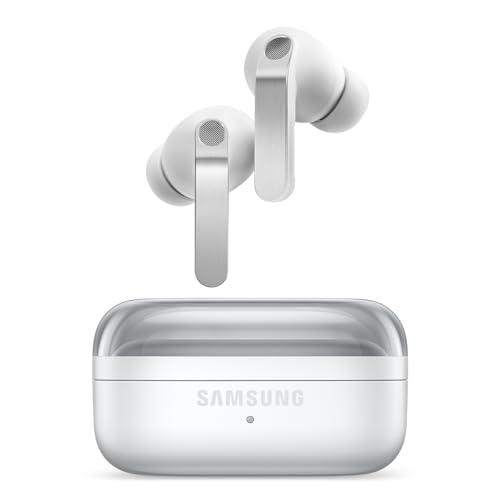
The Samsung Galaxy Buds 4 Pro represent Samsung’s flagship true wireless earbud offering, and the spec sheet reflects that ambition. The 2-way speaker system — combining a woofer and tweeter in each tiny earbud — is designed to deliver Hi-Res Audio with clear separation between lows and highs. ANC 2.0 uses AI to adapt noise cancellation in real time, and the multi-microphone array aims to deliver crystal-clear call quality even in noisy environments.
Pros: Verified reviewers consistently praise the sound quality, calling it a significant step up from previous Galaxy Buds generations. The bass is described as punchy without being overwhelming, and the treble detail from the dedicated tweeter is frequently highlighted. ANC 2.0 receives strong marks, with many users noting it competes directly with the best in the category. The seamless pairing experience on Samsung Galaxy phones is repeatedly called out as a major convenience. Battery life is generally reported as meeting Samsung’s published estimates.
Cons: The most common complaints center on fit — some users with smaller ear canals report that the buds feel bulky after extended wear. A few reviewers note that the full feature set is only accessible on Samsung devices, which limits the value proposition for non-Samsung Android or iOS users. The touch controls, while customizable, can be overly sensitive for some users during physical activity.
Who should buy these: Samsung Galaxy phone owners seeking the best possible audio and ANC experience within the Samsung ecosystem. They’re also a strong choice for any Android user who prioritizes sound quality and call clarity, though non-Samsung users should be aware of potential feature limitations.
For a comparison of Samsung’s wired USB-C earphones against Apple’s equivalent, check out our Apple EarPods USB-C vs Samsung USB-C Earphones breakdown.

Final Tips for Getting the Most Out of Your Buds 4 Pro
- Keep the firmware updated. Samsung’s post-launch updates have historically improved ANC, codec support, and stability.
- Use Adaptive ANC as your default mode — it offers the best balance of noise cancellation and battery life.
- Run the ear tip fit test every time you switch tip sizes or if ANC performance seems to degrade.
- Clean the earbuds and case contacts regularly with a dry cloth to maintain charging reliability.
- Experiment with the EQ. The default “Normal” preset is conservative; many users find “Dynamic” or a custom curve more engaging.
How We Research
This guide was compiled by synthesizing Samsung’s official product documentation, published specifications, the Galaxy Wearable app’s feature descriptions, and verified customer and expert reviews from major retail and tech review platforms. We have not personally tested or owned the Samsung Galaxy Buds 4 Pro. Our goal is to provide the most accurate, honest, and comprehensive setup walkthrough available by curating the best publicly available information. All claims about features and performance are attributed to manufacturer documentation or the general consensus of verified user reviews.


Leave a Reply