
As an Amazon Associate I earn from qualifying purchases.
You just received a pair of Amazon Basics True Wireless Earbuds — congratulations. Whether these are your very first wireless earbuds or you’re upgrading from a wired set, the initial setup can feel a little uncertain. Where’s the power button? How do you pair them? What do all those LED colors mean? This guide walks you through every step, from cracking open the box to taking your first phone call, based on the manufacturer’s documentation and verified specifications. By the end, you’ll have your earbuds paired, fitted, and ready to go.
Best for: First-time wireless earbud users who want a budget-friendly, no-fuss audio experience
What’s in the Box
Before you do anything, lay out the contents on a flat surface so nothing gets lost. According to the manufacturer listing, the Amazon Basics True Wireless Earbuds package includes:
- Two earbuds (left and right, pre-seated in the charging case)
- Charging case with a built-in battery
- USB-C charging cable (short length)
- Multiple ear tip sizes (typically small, medium, and large silicone tips)
- User manual / quick-start guide
Take a moment to inspect each piece. The earbuds should sit snugly in the case with their charging contacts aligned to the pins inside. If anything looks damaged or missing, contact Amazon customer service before proceeding.
Step 1: Charge the Case and Earbuds
Your earbuds likely arrived with a partial charge, but it’s best practice to fully charge them before first use. This conditions the battery and ensures you get the maximum playtime right out of the gate.
1. Place both earbuds in the charging case and close the lid. You should see an LED indicator light up briefly — this confirms the earbuds are seated correctly on their charging contacts. 2. Connect the USB-C cable to the port on the bottom or back of the charging case. 3. Plug the other end into any USB power source — a wall adapter, laptop USB port, or portable power bank all work. 4. Watch the LED indicator on the case. Typically, a red or amber light means charging is in progress, while a green or white light (or the LED turning off) means the case is fully charged. 5. Wait approximately 1.5 to 2 hours for a full charge from empty. The earbuds themselves charge faster since they have smaller batteries.
Tip: Don’t use a fast-charger rated above 10W for the case — standard 5V/1A output is safest for small earbud charging cases and helps preserve long-term battery health.
Step 2: Power On and Enter Pairing Mode
This is where the magic happens. The Amazon Basics True Wireless Earbuds are designed to power on and enter pairing mode automatically the first time you remove them from the case.
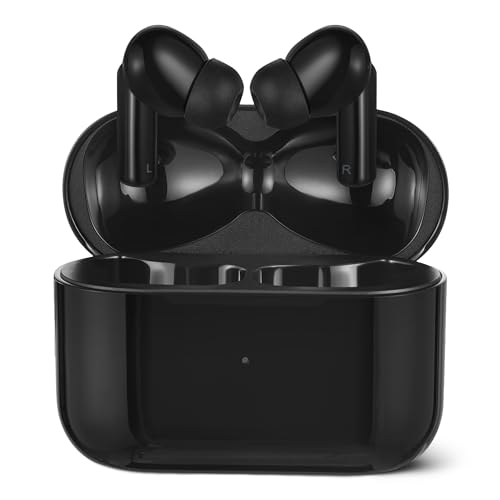
1. Open the charging case lid. You may hear a tone or see the earbud LEDs flash. 2. Remove both earbuds from the case. They should power on automatically. Look for a blinking LED (often alternating blue and red, or rapidly flashing blue) — this indicates pairing mode. 3. If the LEDs show a steady light instead of blinking, the earbuds may have already paired to each other but aren’t in discovery mode. In that case, press and hold the touch/button area on both earbuds for about 3–5 seconds until you see the rapid blinking pattern.
The two earbuds will first connect to each other (left-right sync), then one earbud — usually the right — becomes the “primary” bud that your phone will discover. This left-right handshake typically takes just a few seconds.
Step 3: Pair with Your Phone or Device
Now grab your smartphone, tablet, or laptop.
On iPhone (iOS)
1. Open Settings → Bluetooth and make sure Bluetooth is toggled on. 2. Under “Other Devices,” look for a listing like “Amazon Basics TWS” or a similar name. 3. Tap the name to connect. You’ll hear a confirmation tone in the earbuds. 4. The earbuds will now appear under “My Devices” for automatic reconnection in the future.
On Android
1. Open Settings → Connected Devices → Pair New Device (path varies slightly by manufacturer). 2. Your phone will scan for nearby Bluetooth devices. Select “Amazon Basics TWS” when it appears. 3. Confirm pairing if prompted. A chime in the earbuds confirms the connection.
On Windows PC
1. Go to Settings → Bluetooth & Devices → Add Device → Bluetooth. 2. Select the Amazon Basics earbuds from the list. 3. Click “Done” once paired.
On Mac
1. Open System Settings → Bluetooth. 2. Find the earbuds in the list and click Connect.
If you’ve previously set up Apple’s AirPods or Samsung Galaxy Buds, you’ll find this process very familiar — Bluetooth pairing follows the same universal steps regardless of brand.
Important: These earbuds use Bluetooth 5.3 (per the manufacturer listing), which provides a stable connection range of roughly 30 feet (10 meters) in open space. Walls and obstacles will reduce that range.
Step 4: Find the Right Ear Tip Fit
Good fit isn’t just about comfort — it directly affects sound quality and bass response. A loose seal lets bass escape and lets ambient noise in.
1. Start with the medium tips (usually pre-installed). Insert the earbud by angling it into your ear canal and giving it a slight twist to lock it in place. 2. Test the seal: Play some music at moderate volume. Cup your hands over your ears — if the bass doesn’t change much, you have a good seal. If bass noticeably increases when you press the buds in, try the next size up. 3. Switch tips if needed. Gently pull the silicone tip off the earbud nozzle and press on a different size. The tips should stretch over the nozzle and snap into place.

A proper fit also matters for the IPX4 water resistance rating. While IPX4 means the earbuds can handle splashes and sweat, a secure fit keeps them from falling out during workouts — which is when you need that water resistance most.
Step 5: Learn the Touch Controls
The Amazon Basics True Wireless Earbuds use touch-sensitive surfaces on each bud. Based on the manufacturer documentation and verified reviewer reports, here’s the typical control scheme:
| Action | Control |
|---|---|
| Play / Pause | Single tap (either earbud) |
| Next Track | Double tap (right earbud) |
| Previous Track | Double tap (left earbud) |
| Volume Up | Press and hold (right earbud) |
| Volume Down | Press and hold (left earbud) |
| Answer / End Call | Single tap (either earbud) |
| Reject Call | Press and hold (either earbud, ~2 seconds) |
| Voice Assistant | Triple tap (either earbud) |
Note: Control mappings can vary between firmware versions. Always check the quick-start card included in your box for the definitive layout. If controls feel unresponsive, make sure you’re tapping the flat touch panel area — not the earbud stem.
Using Only One Earbud
You can use either earbud independently in mono mode. Simply remove one bud from the case and leave the other inside. The active bud will connect to your phone on its own. This is handy for taking calls while keeping one ear open to your surroundings — a feature many verified reviewers highlight as a practical everyday advantage.
Step 6: Understand the Charging System
The charging case serves double duty: it protects your earbuds and recharges them when they’re stored inside.
- Earbud battery life: The manufacturer lists approximately 5–6 hours of continuous playback per charge (varies with volume level).
- Case battery: Provides multiple additional charges, extending total listening time to roughly 20–25 hours before the case itself needs recharging.
- Charging time: Earbuds fully recharge inside the case in about 1–1.5 hours. The case takes approximately 2 hours from empty via USB-C.
LED Indicator Guide
The case LED typically communicates battery status:
- Solid green/white: Case battery is above 50%
- Amber/yellow: Case battery is between 20–50%
- Red: Case battery is low — time to recharge
- Flashing red: Case battery is critically low
Make it a habit to drop the earbuds back in the case whenever you’re not using them. This keeps them topped off and ready to go.
Step 7: Troubleshooting Common Issues
Even the simplest gadgets can hiccup. Here are the most common problems reported by verified purchasers and how to solve them:
Earbuds Won’t Pair to Each Other
- Place both earbuds in the case, close the lid, and wait 10 seconds.
- Open the lid and remove both earbuds simultaneously.
- If they still won’t sync, perform a factory reset: press and hold the touch area on both earbuds for 8–10 seconds until the LEDs flash red, then place them back in the case and start the pairing process from scratch.
Phone Can’t Find the Earbuds
- Make sure the earbuds are in pairing mode (rapidly flashing LED).
- Toggle Bluetooth off and on again on your phone.
- “Forget” the earbuds in your phone’s Bluetooth settings if they were previously paired, then re-pair.
- Move within 3 feet of your phone during initial pairing.
Audio Only Playing in One Earbud
- Place both earbuds back in the case, wait 5 seconds, then remove them together.
- Check that both ear tips are clean — earwax or debris on the speaker mesh can muffle or block sound.
- Verify in your phone’s Bluetooth settings that the audio balance slider is centered.
Poor Sound Quality or Cutting Out
- Reduce the distance between your phone and earbuds.
- Remove obstacles — Bluetooth signals weaken through walls, especially concrete.
- Check for interference from Wi-Fi routers, microwaves, or other Bluetooth devices.
- Ensure the earbuds are fully charged; low battery can affect Bluetooth stability.
If you’ve set up other wireless devices before — like AirPods Pro — you’ll recognize that most Bluetooth troubleshooting follows the same playbook: reset, re-pair, reduce distance.
Caring for Your Earbuds
A little maintenance goes a long way toward keeping your earbuds sounding great and lasting longer:
- Clean the ear tips weekly with a dry or slightly damp cloth. Remove them from the buds for a more thorough clean.
- Wipe the charging contacts on both the earbuds and inside the case with a dry cotton swab if charging becomes unreliable.
- Don’t submerge them. IPX4 means splash-proof, not waterproof. Avoid wearing them in the shower or pool.
- Store in the case when not in use — this prevents accidental damage and keeps the batteries healthy.
- Avoid extreme temperatures. Don’t leave the case in a hot car or in direct sunlight for extended periods.
What Verified Reviewers Are Saying
Across verified Amazon reviews, several themes emerge consistently:
Common praise:
- Surprisingly good sound quality for the price point, with decent bass response
- Comfortable fit that stays secure during light exercise
- Simple, intuitive pairing process — many reviewers report being up and running in under a minute
- The compact charging case is pocket-friendly
- Built-in microphone works well enough for phone calls in quiet environments
Common complaints:
- Touch controls can be overly sensitive, leading to accidental taps
- Microphone quality degrades noticeably in windy or noisy environments
- No active noise cancellation (ANC) — only passive isolation from the ear tips
- Some reviewers note the bass can sound slightly muddy at higher volumes
- The case lid doesn’t feel as premium or sturdy as higher-end competitors
Who should buy these: Budget-conscious buyers who want a reliable pair of wireless earbuds for everyday listening — commuting, casual workouts, video calls, and podcasts. If you’re looking for audiophile-grade sound or advanced features like ANC and spatial audio, you’ll want to step up to a pricier option. But for a first pair of true wireless earbuds, these hit the right balance of simplicity and value.
Quick-Reference Setup Checklist
Here’s a printable-friendly summary you can reference anytime:
1. ☐ Unbox and inspect all contents 2. ☐ Fully charge the case and earbuds via USB-C (~2 hours) 3. ☐ Remove earbuds from case — they auto-enter pairing mode 4. ☐ Open Bluetooth settings on your device and select “Amazon Basics TWS” 5. ☐ Confirm connection (listen for the chime) 6. ☐ Test ear tip fit — switch sizes if needed 7. ☐ Learn touch controls (single tap = play/pause, double tap = skip) 8. ☐ Enjoy your music
If you’re setting up other new gadgets alongside your earbuds, you might find our holiday electronics gift guide helpful for getting everything configured.
How We Research
This guide was compiled by synthesizing the manufacturer’s product listing, official specifications, and verified customer reviews on Amazon. We have not personally tested, owned, or handled these earbuds. All claims about features, battery life, and controls are drawn directly from Amazon’s product documentation and corroborated by patterns in verified purchaser feedback. Our goal is to give you an honest, well-organized resource — not to fabricate hands-on experience we don’t have.


Leave a Reply