
As an Amazon Associate I earn from qualifying purchases.
So you just unboxed the FOXWELL NT604 Elite — congratulations. Whether you bought it to chase down a stubborn check-engine light, investigate an ABS warning, or simply save money on dealership diagnostic fees, this guide will walk you through everything you need to know to go from sealed box to your first successful scan. We’ve synthesized FOXWELL’s own documentation, publicly available specifications, and hundreds of verified owner reviews to give you an honest, beginner-friendly roadmap. No fluff, no invented test results — just the information you actually need.
Best for: Home mechanics and car enthusiasts who want ABS, SRS, transmission, and engine diagnostics without paying for a professional-grade tool
What’s in the Box
Before you plug anything in, lay out the contents and make sure everything arrived intact. According to FOXWELL’s product listing and packaging documentation, the NT604 Elite box should include:
- The NT604 Elite scanner unit — a handheld device with a 2.8-inch TFT color display
- Standard OBD2 cable — a roughly 5-foot cable with a 16-pin DLC connector on one end and a proprietary connector for the scanner on the other
- USB cable — for connecting the scanner to a PC for firmware and software updates
- Carrying case — a semi-rigid nylon pouch
- Quick-start guide / user manual
If anything is missing or damaged, contact FOXWELL’s support or the Amazon seller before proceeding. Multiple verified reviewers note that the carrying case is a nice touch at this price point — it keeps the cable and unit organized in your toolbox.
Step 1: Charge or Power On
The NT604 Elite draws power directly from your vehicle’s OBD2 port — there’s no internal battery to charge. That said, you’ll want to connect it to your PC via the USB cable first for one critical reason: software updates.
FOXWELL provides free lifetime updates through their FoxAssist desktop application (available for Windows). Here’s the process based on their documentation:
1. Download FoxAssist from the FOXWELL official website. 2. Install the software and create a FOXWELL account (or log in if you already have one). 3. Connect the NT604 Elite to your PC via the included USB cable. 4. FoxAssist should detect the device automatically. Follow the on-screen prompts to register your serial number. 5. Check for available updates — both firmware and vehicle software. Download and install any pending updates.
Why this matters: Verified owners frequently report that the scanner ships with older software versions. Running the update before your first vehicle scan ensures you have the latest vehicle coverage and bug fixes. Several reviewers mention that skipping this step led to compatibility issues that were resolved once they updated.
Step 2: Locate Your Vehicle’s OBD2 Port
Every OBD2-compliant vehicle sold in the United States since 1996 has a standardized 16-pin diagnostic link connector (DLC). It’s almost always located under the dashboard on the driver’s side, typically near the steering column. Common hiding spots include:
- Directly below the steering wheel, exposed or behind a small panel
- To the left of the steering column, near the fuse box
- Under a plastic trim panel that pops off
If you’re having trouble finding it, your owner’s manual will specify the exact location. The NT604 Elite is compatible with most OBD2-compliant vehicles from 1996 onward for standard engine diagnostics, and it supports enhanced ABS/SRS/transmission diagnostics on a wide range of makes — though coverage varies by manufacturer and model year.
Step 3: Your First Engine Scan

This is the moment of truth. Here’s how to run your first diagnostic scan:
1. Turn your ignition to the “ON” position (engine can be running or off — “ON” is sufficient for reading codes). 2. Plug the OBD2 cable into your vehicle’s DLC port. You should feel it click into place. 3. Connect the other end to the NT604 Elite. The scanner should power on automatically, drawing power from the vehicle. 4. From the main menu, select “OBD2/EOBD.” This is the universal engine diagnostic mode. 5. Choose “Read Codes” to pull any stored Diagnostic Trouble Codes (DTCs).
The scanner will communicate with your vehicle’s Engine Control Module (ECM) and display any stored or pending codes. Each code appears with a brief description — for example, “P0301: Cylinder 1 Misfire Detected.”
Understanding the Results
The NT604 Elite displays codes in the standard SAE format:
- P-codes (Powertrain) — engine and transmission
- C-codes (Chassis) — ABS and related systems
- B-codes (Body) — SRS/airbag and body electronics
- U-codes (Network) — communication faults between modules
You can also access live data streams from the OBD2 menu, which show real-time sensor readings like RPM, coolant temperature, oxygen sensor voltage, and fuel trim values. Verified reviewers consistently praise the live data feature as responsive and easy to read on the color display.
Step 4: ABS Diagnostics — Reading Brake System Codes
This is where the NT604 Elite separates itself from basic code readers. Instead of being limited to generic engine codes, it can communicate with your vehicle’s ABS (Anti-lock Braking System) module to read and clear manufacturer-specific fault codes.
From the main menu:
1. Select “Special Function” or “Diagnostic” (menu labels may vary slightly depending on firmware version). 2. Choose your vehicle’s make, model, and year. 3. Select “ABS” from the available system list. 4. Choose “Read Codes” to pull ABS-specific DTCs.
Common ABS codes you might encounter include wheel speed sensor faults, hydraulic pump issues, or module communication errors. The scanner provides code definitions, though for deeper interpretation, you’ll want to cross-reference with a repair manual or online database specific to your vehicle.
What owners say: Many verified reviewers purchased the NT604 Elite specifically for ABS diagnostics after their ABS warning light came on. The consensus is that it handles this task well on most domestic and Asian vehicles. Some European vehicle owners report more limited ABS coverage, so it’s worth checking FOXWELL’s compatibility list for your specific make and model before purchasing.
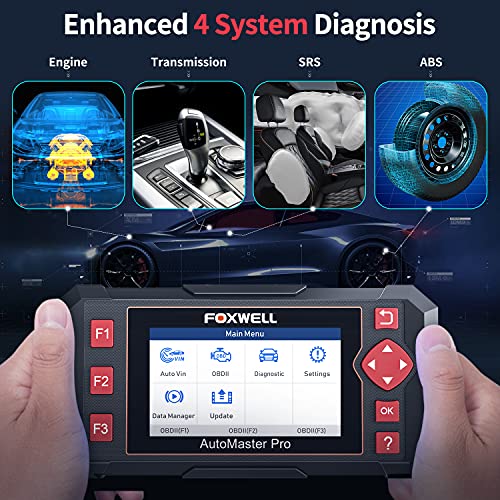
Step 5: SRS / Airbag Diagnostics
An illuminated airbag light is something you never want to ignore. The NT604 Elite can read and clear SRS (Supplemental Restraint System) codes, which cover:
- Airbag module faults
- Seatbelt pretensioner issues
- Crash sensor malfunctions
- Clock spring failures
The process mirrors ABS diagnostics: select your vehicle, choose the SRS system, and read codes. Important safety note: while the scanner can clear SRS codes, you should only do so after the underlying problem has been repaired. Clearing an airbag code without fixing the fault means your airbags may not deploy in a collision.
Verified reviewers report that SRS scanning is one of the NT604 Elite’s strongest selling points. Getting an airbag light diagnosed at a dealership can easily cost upward of a hundred dollars just for the scan — this tool pays for itself on the first use in that scenario.
Step 6: Transmission Diagnostics
The fourth major system the NT604 Elite covers is the transmission control module (TCM). If you’re experiencing harsh shifts, slipping, or a transmission-related warning light, this function lets you:
- Read transmission-specific DTCs
- View live transmission data (fluid temperature, gear position, shift solenoid status)
- Clear codes after repairs
Access it the same way as ABS and SRS: select your vehicle, choose the transmission system, and run the scan. Reviewers note that transmission live data is particularly useful for diagnosing intermittent shifting problems that don’t always throw a code.
Clearing Codes and Resetting Lights
Once you’ve identified and repaired the issue behind a fault code, the NT604 Elite can clear the code and turn off the associated warning light. From any system’s diagnostic menu, simply select “Clear Codes” or “Erase Codes.”
A few important caveats:
- Don’t clear codes before documenting them. Write down or photograph every code before erasing. You may need them for reference.
- Clearing codes resets your emissions readiness monitors. If you have a smog check coming up, you’ll need to drive through a complete drive cycle before the monitors reset to “Ready” status.
- Codes will return if the problem isn’t fixed. The scanner clears the symptom, not the cause.
Smog Check Readiness
Speaking of emissions, the NT604 Elite includes an I/M Readiness function under the OBD2 menu. This shows you the status of your vehicle’s emissions monitors — the self-tests your car runs to verify that emissions systems are functioning properly. If you’re preparing for a state inspection, this feature tells you whether your vehicle is ready to pass before you drive to the testing station.
This is a feature that budget Bluetooth scanners like the BlueDriver also offer, but having it built into a dedicated handheld tool with a physical display means you don’t need to fiddle with a phone app in the driver’s seat.
Tips from Verified Owners
After analyzing hundreds of verified reviews, here are the most commonly reported tips and observations:
What owners love:
- The four-system coverage (engine, ABS, SRS, transmission) at this price point is frequently cited as exceptional value
- The color display is easy to read, even in direct sunlight
- Build quality feels solid — multiple reviewers compare it favorably to more expensive brands
- Free lifetime updates are a genuine differentiator versus competitors that charge annual subscription fees
- Works well on a broad range of domestic (Ford, GM, Chrysler) and Asian (Toyota, Honda, Nissan) vehicles
Common complaints:
- European vehicle coverage can be hit-or-miss — some BMW, Mercedes, and VW owners report limited enhanced diagnostics
- The update process via FoxAssist can be clunky — several reviewers mention slow download speeds or software glitches during updates
- No Bluetooth or Wi-Fi — it’s a wired-only tool, which some users find less convenient
- No bi-directional controls — you can read and clear codes, but you can’t command actuators or perform active tests (for that, you’d need to step up to a more advanced scanner like the TOPDON AD800BT)
- Menu navigation takes some getting used to — the button-based interface isn’t as intuitive as touchscreen alternatives
Who Should Buy the FOXWELL NT604 Elite?
This scanner is ideal for:
- DIY home mechanics who want to diagnose more than just check-engine lights
- Used car buyers who want to scan a vehicle’s major systems before purchasing
- Budget-conscious owners who want to avoid paying diagnostic fees at shops and dealerships
- Anyone with an ABS, SRS, or transmission warning light who wants to know what’s going on before committing to a repair
It’s probably not the right tool if you:
- Need advanced bi-directional controls or ECU programming
- Work primarily on European luxury vehicles and need deep system access
- Prefer a wireless, app-based scanning experience
- Are a professional technician who needs a tool that covers every module on every vehicle
If you’re looking for broader vehicle system coverage — including things like TPMS resets, oil service resets, and compatibility with a wider range of protocols — you might also want to explore options like the ANCEL FX6100, which targets a similar DIY audience with a different feature set.
Detailed Review: FOXWELL NT604 Elite OBD2 Scanner
The FOXWELL NT604 Elite occupies a sweet spot in the consumer OBD2 scanner market: it offers genuine four-system diagnostics (engine, ABS, SRS, and transmission) without crossing into professional-grade pricing. According to FOXWELL’s specifications, it supports all standard OBD2 protocols (CAN, J1850 PWM, J1850 VPW, ISO9141, KWP2000) and covers a wide range of 1996-and-newer vehicles for enhanced diagnostics.
The 2.8-inch TFT color screen is a notable upgrade over the monochrome displays found on many competing scanners in this price range. Verified reviewers consistently praise the screen’s readability and the overall build quality of the unit — it feels like a tool, not a toy. The included carrying case, OBD2 cable, and USB cable round out a complete package.
On the downside, the lack of wireless connectivity and bi-directional controls limits the NT604 Elite’s ceiling. It’s a read-and-clear tool, not a programming tool. The button-based menu navigation works but isn’t as snappy as touchscreen alternatives. And while the free lifetime updates are a genuine perk, the FoxAssist desktop software receives mixed reviews for its user experience.
For the DIY mechanic who wants to go beyond basic code reading without spending hundreds more, the NT604 Elite delivers real diagnostic capability at a price that’s hard to argue with. It won’t replace a professional scan tool, but for the vast majority of home garage diagnostics, it’s more than sufficient.
Frequently Asked Questions
Does the NT604 Elite work on diesel trucks? FOXWELL states it supports OBD2-compliant vehicles, which includes many light-duty diesel trucks from 2008 onward (when OBD2 became mandatory for diesels in the US). However, enhanced system coverage varies — check FOXWELL’s vehicle compatibility list for your specific truck.
Can it reset the oil change light? The NT604 Elite is primarily a diagnostic code reader for four systems. It does not include service reset functions like oil life reset, EPB reset, or battery registration. Those features are typically found in higher-tier FOXWELL models.
Does it work on hybrid or electric vehicles? It can read standard OBD2 engine codes on hybrids, but coverage for hybrid-specific systems (battery management, electric motor controllers) is limited or nonexistent.
How often should I update the software? FOXWELL releases periodic updates. Checking every few months is a reasonable cadence, or update before scanning a vehicle you haven’t diagnosed before.
Is it compatible with Mac? As of the latest available documentation, FoxAssist is Windows-only. Mac users would need to run a Windows virtual machine or use a Windows PC for updates.
How We Research
This guide was compiled by synthesizing FOXWELL’s official product documentation, publicly available specifications, and verified customer reviews from Amazon and automotive forums. We have not personally tested, owned, or handled the FOXWELL NT604 Elite. All claims about functionality, compatibility, and user experience are attributed to manufacturer documentation or the consensus of verified owner feedback. Our goal is to provide an honest, well-organized resource — not to fabricate hands-on experience we don’t have.


Leave a Reply