
As an Amazon Associate I earn from qualifying purchases.
If your MOMILLA alarm clock isn’t cooperating — alarms not sounding, the display acting up, or the temperature reading looking wrong — you’re not alone. This colorful-screen alarm clock packs a surprising number of features into a compact bedside device, including four independent alarms, 7-day programmability, and an ambient temperature display. But with all those features comes a learning curve, and owner reports confirm that setup hiccups and operational quirks are common. This guide synthesizes the MOMILLA alarm clock manual, manufacturer specifications, and real owner feedback to walk you through every frequently reported problem and its fix.
Best for: Heavy sleepers, families, and anyone needing multiple daily alarms with day-of-week scheduling
Understanding the MOMILLA Alarm Clock’s Key Features
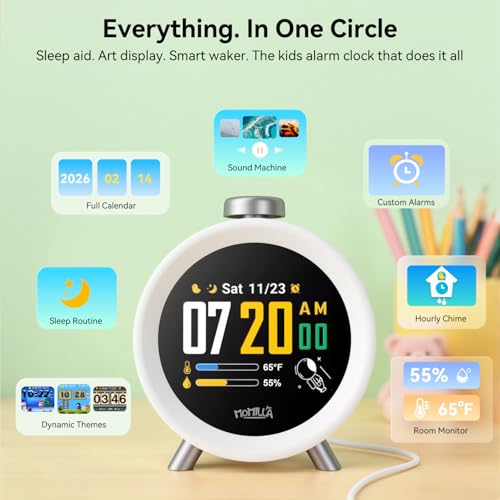
Before diving into troubleshooting, it helps to know what this clock can actually do. According to the manufacturer’s product listing, the MOMILLA alarm clock offers:
- Colorful LCD screen with adjustable brightness levels
- Four independent alarms — each can be set to a different time
- 7-day programmable scheduling — alarms can be assigned to specific days of the week
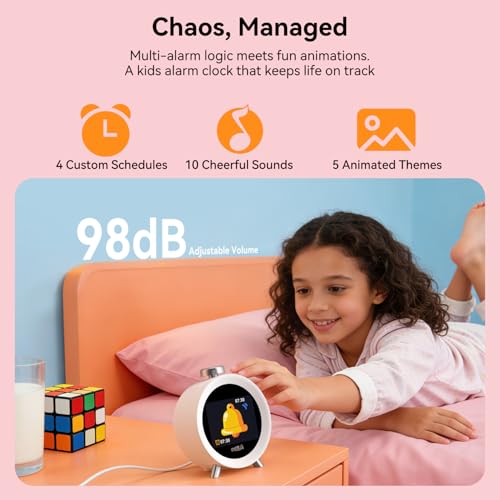
- Loud alarm tones designed for heavy sleepers
- Indoor temperature display (typically in °F or °C)
- USB or battery power (depending on the model variant)
Understanding these features matters because many “problems” owners report are actually configuration misunderstandings. Let’s work through them systematically.
Problem 1: The Clock Won’t Turn On or Has No Display
Symptoms
- Screen is completely blank
- Clock appears dead after unboxing
- Display flickers and then goes dark
Step-by-Step Fix
1. Check the power source. The MOMILLA alarm clock typically requires either USB power or batteries (some models use both — USB for primary power and batteries for backup). Make sure your USB cable is firmly seated in both the clock and the power adapter or port. If using batteries, confirm they are fresh and inserted with correct polarity.
2. Try a different USB cable and adapter. A surprising number of “dead clock” reports trace back to a weak USB adapter. Use an adapter rated for at least 5V/1A. Cheap phone chargers sometimes can’t deliver stable power to the display.
3. Check brightness settings. Some owners have reported that the display brightness was set to its lowest level during shipping or after a reset, making the screen appear off in a bright room. Press the brightness button (often labeled with a sun icon or “+/−”) to cycle through brightness levels.
4. Perform a reset. Look for a small reset pinhole on the back or bottom of the unit. Use a paperclip to press and hold the reset button for 3–5 seconds, then release. The clock should restart with factory defaults.
If none of these steps work, the unit may have a hardware defect. Contact MOMILLA’s customer support or initiate a return through Amazon.
Problem 2: Alarms Not Sounding
This is the single most commonly reported issue based on verified owner reviews. A clock that doesn’t wake you up defeats its entire purpose — especially one marketed to heavy sleepers.
Symptoms
- Alarm was set but never went off
- Alarm sounds on some days but not others
- Alarm icon appears on screen but no sound at the scheduled time
Step-by-Step Fix
1. Verify the alarm is actually enabled. Setting an alarm time and activating it are two separate steps on the MOMILLA. After setting the time, you must confirm that the alarm indicator (usually a small bell icon) is visible on the display for that alarm slot. If the icon isn’t showing, the alarm is configured but not armed.
2. Check the day-of-week schedule. This is the #1 gotcha. Because the MOMILLA supports 7-day programmability, each alarm can be assigned to specific days. If you set an alarm for weekdays only (Mon–Fri) and it’s Saturday, it won’t sound. Review the day assignments for each alarm and make sure the current day is included.
3. Confirm the clock’s time and day are correct. If the clock’s internal day-of-week is wrong (say it thinks today is Sunday when it’s actually Monday), day-specific alarms will fire on the wrong days — or appear not to fire at all. Re-enter the time and day settings from scratch.
4. Check the volume level. Some MOMILLA models allow alarm volume adjustment. If the volume was accidentally turned down, the alarm may technically be sounding but at an inaudible level. Cycle through volume settings during alarm setup.
5. Test the alarm manually. Set a test alarm for 1–2 minutes in the future and wait. This confirms whether the alarm hardware and speaker are functioning. If the test alarm sounds, the issue is almost certainly a scheduling or day-of-week configuration error.
Problem 3: Alarm Won’t Stop or Keeps Snoozing
Symptoms
- Pressing buttons doesn’t silence the alarm
- Alarm stops but sounds again minutes later
- Can’t figure out which button is snooze vs. dismiss
Step-by-Step Fix
1. Distinguish snooze from dismiss. On most MOMILLA models, the large top button is snooze — it silences the alarm temporarily (usually for 5–9 minutes) but it will sound again. To fully dismiss the alarm, you typically need to press a different button or hold the snooze button for a longer duration. Check the manual for your specific model’s dismiss method.
2. Disable snooze if unwanted. If you find the repeated snooze annoying, some MOMILLA firmware versions allow you to turn off the snooze function in settings. Look for a snooze on/off toggle in the alarm configuration menu.
3. Check for multiple overlapping alarms. With four alarm slots, it’s possible you’ve set two alarms a few minutes apart. When you dismiss one, the second fires shortly after, making it seem like the first alarm won’t stop. Review all four alarm slots and disable any you don’t need.
Problem 4: Temperature Display Is Inaccurate
Symptoms
- Temperature reading seems too high or too low
- Temperature doesn’t change even when the room gets warmer or cooler
- Display shows °F when you want °C (or vice versa)
Step-by-Step Fix
1. Allow acclimation time. The built-in temperature sensor needs time to adjust to ambient conditions. If you just unboxed the clock or moved it from another room, give it 30–60 minutes to stabilize. Readings taken immediately after plugging in are often inaccurate.
2. Check placement. The sensor reads the temperature of the air immediately around the clock. Placing it near a heat source (lamp, laptop, heating vent, window with direct sunlight) will skew readings upward. Move the clock to a neutral location on your nightstand, away from electronics and airflow vents.
3. Switch between °F and °C. There’s typically a button or button combination (often holding the temperature or “°C/°F” button for 2–3 seconds) that toggles the unit. If you’re seeing an unfamiliar number, you may simply be reading the wrong unit.
4. Understand the sensor’s limitations. This is a bedside alarm clock, not a calibrated thermometer. Owner reviews consistently note that the temperature reading can be off by 2–4°F compared to a dedicated room thermometer. This is normal for an integrated sensor in a compact device and shouldn’t be considered a defect.
If you’ve dealt with similar sensor-accuracy frustrations on other gadgets, you might find our smart health ring troubleshooting guide helpful — the same acclimation and placement principles apply to wearable temperature sensors.
Problem 5: Display Color or Brightness Issues
Symptoms
- Screen is too bright at night, disturbing sleep
- Colors look washed out or dim
- Display segments are partially missing
Step-by-Step Fix
1. Adjust brightness. The MOMILLA offers multiple brightness levels. Cycle through them using the brightness button. For nighttime use, the lowest setting is usually sufficient to read the time without lighting up the room. Some owners report that even the lowest setting is brighter than expected — in that case, angling the clock slightly away from your line of sight can help.
2. Check for auto-brightness features. Some MOMILLA variants include an ambient light sensor that automatically adjusts screen brightness. If the clock seems to change brightness on its own, this feature may be active. Consult the manual for how to switch between auto and manual brightness modes.
3. Partial display segments. If parts of the numbers or icons are missing (e.g., an “8” displays as “0”), this typically indicates a hardware defect in the LCD panel. Try a full reset first. If the issue persists, the unit should be replaced under warranty.
Problem 6: Clock Loses Time or Resets After Power Loss
Symptoms
- Time resets to 12:00 after unplugging
- Clock runs slow or fast over days/weeks
- Settings disappear when batteries die
Step-by-Step Fix
1. Install backup batteries. If your MOMILLA model supports both USB and battery power, the batteries serve as backup during power outages. Without them, unplugging the USB cable (even briefly) will reset all settings. Install fresh AAA or AA batteries (check your model’s requirements) to maintain settings during power interruptions.
2. Use quality batteries. Cheap or near-dead batteries can cause erratic behavior, including time drift. Use name-brand alkaline batteries and replace them at least once a year.
3. Check for firmware drift. Some owners report the clock gaining or losing a minute or two per month. This is common in inexpensive quartz-based clocks and isn’t unique to MOMILLA. There’s no user-adjustable calibration — you’ll need to manually correct the time periodically. Setting a monthly reminder on your phone to check the clock’s accuracy is a practical workaround.
This kind of time-drift issue is similar to what owners of other electronics experience — for instance, our produce cleaner troubleshooting guide covers timer-related quirks on a completely different device category, but the underlying principle of periodic manual correction applies broadly.
Problem 7: Buttons Are Unresponsive or Confusing
Symptoms
- Pressing buttons does nothing
- Can’t figure out which button does what
- Buttons require excessive force
Step-by-Step Fix
1. Learn the button layout. The MOMILLA typically has buttons on the top and back. Top buttons usually handle snooze and backlight. Back buttons handle time setting, alarm configuration, and mode switching. Spend a few minutes with the included manual (or download it from the Amazon listing) to map out each button’s function.
2. Use the correct mode. Many buttons only work when the clock is in a specific mode (e.g., you can’t adjust alarm time unless you’ve entered alarm-setting mode first). If a button seems unresponsive, you may simply be in the wrong mode. Press the “MODE” or “SET” button first to enter the appropriate configuration screen.
3. Press firmly and deliberately. Some owners note that the buttons require a solid press rather than a light tap. This is by design to prevent accidental presses during sleep.
4. Reset if truly unresponsive. If buttons genuinely don’t respond to any input, perform a pinhole reset. If the problem persists after reset, it may be a hardware issue.
Problem 8: Initial Setup and Time-Setting Confusion
Symptoms
- Can’t figure out how to set the time
- 12-hour vs. 24-hour format confusion
- Year/date setting seems unnecessary but won’t let you skip
Step-by-Step Fix
1. Enter time-setting mode. Typically, press and hold the “SET” or “TIME” button on the back for 3 seconds. The hour digits should start flashing.
2. Use UP/DOWN or +/− buttons to adjust the flashing value. Press SET again to confirm and move to the next field (usually: hour → minutes → year → month → day → day-of-week).
3. Don’t skip the day-of-week. This is critical because the 7-day alarm scheduling depends on it. If you set the wrong day, your weekday-only alarms will misfire.
4. Toggle 12H/24H format. There’s usually a dedicated button or a long-press combination to switch between 12-hour and 24-hour display. If you’re seeing times like “15:30” and prefer “3:30 PM,” look for this toggle.
Quick-Reference Troubleshooting Table
For fast scanning, here’s a summary of every issue and its most likely fix:
| Problem | Most Likely Cause | Quick Fix |
|---|---|---|
| Blank display | No power or brightness at minimum | Check USB cable/batteries; increase brightness |
| Alarm doesn’t sound | Alarm not enabled or wrong day selected | Verify bell icon is on; check day schedule |
| Alarm won’t stop | Pressing snooze instead of dismiss | Use the correct dismiss button or hold snooze longer |
| Wrong temperature | Poor placement or no acclimation | Move away from heat sources; wait 30–60 min |
| Too bright at night | Brightness set too high | Cycle to lowest brightness level |
| Time resets | No backup batteries installed | Insert fresh batteries for backup |
| Buttons unresponsive | Wrong mode or light press | Enter correct mode first; press firmly |
| Can’t set time | Not in time-setting mode | Hold SET button 3 seconds to enter setup |
Full Product Review: MOMILLA Alarm Clock for Heavy Sleepers

The MOMILLA Alarm Clock is designed squarely for people who struggle to wake up. Its headline feature is a loud alarm system with four independently programmable slots, each assignable to specific days of the week. According to the manufacturer, the colorful LCD screen displays time, temperature, and alarm status at a glance, and the brightness is adjustable for nighttime comfort.
Based on verified owner reviews, the alarm volume genuinely delivers — multiple reviewers describe it as loud enough to wake even the deepest sleepers. The 7-day scheduling is praised by shift workers and parents who need different wake times on different days. The colorful display is frequently called attractive and easy to read from across the room.
On the downside, the most consistent complaints center on the setup process. Owners report that the button layout is unintuitive, and the included manual could be clearer. The day-of-week alarm programming, while powerful, trips up many users on first setup. Temperature accuracy is another common gripe — readings can deviate a few degrees from dedicated thermometers, which is typical for this class of device but still disappoints some buyers.
The clock is best suited for heavy sleepers, families with multiple schedules, and anyone who needs more than one or two daily alarms. It’s compact enough for a nightstand but feature-rich enough to replace a phone alarm for people trying to keep screens out of the bedroom.
Pros:
- Genuinely loud alarm for heavy sleepers
- Four alarms with 7-day scheduling flexibility
- Colorful, readable display with adjustable brightness
- Compact footprint for nightstands
Cons:
- Setup and button navigation have a learning curve
- Temperature sensor accuracy is approximate
- Manual could be more detailed
- Lowest brightness may still be too bright for light-sensitive sleepers
When to Contact MOMILLA Support or Return the Clock
Not every problem has a DIY fix. Consider reaching out to the manufacturer or initiating an Amazon return if:
- The display has dead pixels or permanently missing segments after a reset
- The speaker produces no sound at all (not even faintly) on any alarm
- Buttons are physically stuck or broken
- The clock won’t hold time even with fresh batteries and stable USB power
- The unit arrived with visible physical damage
Most sellers on Amazon offer a return window, and MOMILLA products typically include a manufacturer warranty. Check your order page for specific return and warranty details.
Tips for Getting the Most Out of Your MOMILLA Alarm Clock
1. Set it up on a day off. Don’t rush through configuration the night before an important morning. Take 15 minutes on a weekend to program all four alarms and verify each one fires correctly.
2. Label your alarms mentally. With four slots, it helps to assign each a purpose: Alarm 1 = weekday wake-up, Alarm 2 = weekend wake-up, Alarm 3 = medication reminder, Alarm 4 = kid’s bedtime alert, etc.
3. Place it across the room. If you’re a heavy sleeper, putting the clock on a dresser instead of your nightstand forces you to physically get up to silence it. The loud volume ensures you’ll hear it from across the room.
4. Use USB power with battery backup. This gives you the best of both worlds: reliable power for the display and settings preservation during outages.
5. Check the time monthly. Since there’s no automatic time sync (no Wi-Fi or radio signal), manual verification prevents gradual drift from affecting your schedule.
For more troubleshooting approaches on everyday gadgets, our Jackery Explorer 300 troubleshooting guide demonstrates a similar systematic approach to diagnosing power and display issues on a different type of device.
How We Research
This guide was compiled by synthesizing the MOMILLA alarm clock’s manufacturer product listing, publicly available specifications, and patterns found across verified customer reviews on Amazon. We have not personally tested, owned, or handled this product. Our goal is to aggregate the most commonly reported issues and pair them with the most effective solutions based on the manual’s instructions and real owner experiences. When owner reviews conflict, we note the discrepancy and offer the most broadly applicable fix. This honest, research-based approach ensures you get reliable guidance without fabricated hands-on claims.


Leave a Reply