
As an Amazon Associate I earn from qualifying purchases.
Portable USB-C monitors have become indispensable for remote workers, travelers, and gamers who need a second screen on the go. But as convenient as they are, they come with a unique set of headaches — blank screens, flickering displays, USB-C connections that refuse to cooperate, and audio that vanishes without warning. If you’ve ever stared at a portable monitor that simply won’t turn on, you’re not alone. Verified customer reviews across major retailers consistently surface the same handful of problems, and the good news is that most of them have straightforward fixes. This guide walks you through the most frequently reported issues with portable monitors, using the popular MNN 15.6-inch Portable Monitor as a practical reference point, and provides step-by-step solutions drawn from manufacturer documentation and real user experiences.
Best for: Remote workers, students, and gamers who need a dependable second screen
Why Portable Monitors Are Prone to Specific Issues
Unlike traditional desktop monitors that draw power from a wall outlet and connect via standardized display cables, portable monitors rely heavily on USB-C for both power delivery and video signal. This dual-purpose connection is elegant but introduces complexity. Not every USB-C port supports video output (DisplayPort Alt Mode), not every cable carries both power and data, and not every laptop delivers enough wattage to run an external display. These variables are the root cause of the vast majority of portable monitor complaints.
Additionally, portable monitors are thin, lightweight, and designed for travel — which means they’re more susceptible to physical stress on ports, cables, and internal connections. Understanding these fundamentals will help you diagnose problems faster.
The MNN 15.6-Inch Portable Monitor: A Practical Reference
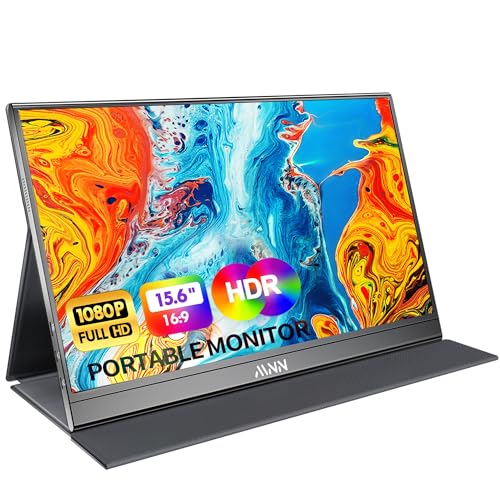
The MNN 15.6-inch FHD 1080P portable monitor is one of the most popular budget-friendly portable displays available. It features a 60Hz IPS panel, dual connectivity via USB-C and mini-HDMI, built-in speakers, a smart cover/stand, and HDR support. It’s widely used by remote workers, students, and casual gamers — and because of its popularity, there’s a substantial body of verified customer feedback documenting both its strengths and its quirks.
What reviewers consistently praise: The display quality for the price is frequently highlighted. Users report vivid colors, good viewing angles typical of IPS panels, and adequate brightness for indoor use. The included smart cover doubles as a stand, which many find convenient. Setup is generally described as plug-and-play for compatible devices, and the slim profile makes it genuinely portable.
What reviewers commonly report as issues: The most frequent complaints center on USB-C connectivity — specifically, the monitor not being recognized or not receiving enough power from certain laptops. Some users report flickering at certain brightness levels, audio quality from the built-in speakers being underwhelming (expected at this size), and occasional confusion about which cables to use. A smaller number of reviewers mention the screen being dimmer than expected in bright environments.

The MNN monitor is an excellent case study because the problems users encounter with it are representative of portable monitors as a category. The troubleshooting steps below apply broadly, though we’ll reference this model specifically where relevant.
Who should buy this monitor: Budget-conscious users who need a reliable second screen for productivity, light gaming, or entertainment. It’s a strong choice for anyone who primarily works indoors and wants USB-C and HDMI flexibility. If you need extreme brightness for outdoor use or professional color accuracy, you’ll want to look at higher-end options.
Problem 1: Monitor Won’t Turn On or Shows a Black Screen
This is the single most reported issue across portable monitors, and it’s almost always a power delivery problem rather than a defective unit.
Step-by-Step Fix
1. Check the power source. USB-C portable monitors like the MNN require a minimum wattage to operate — typically 10-15W. If your laptop’s USB-C port doesn’t deliver enough power, the monitor won’t turn on. Try connecting the included USB-C power cable to a wall adapter (at least 18W, ideally 30W+) while using a separate cable for video.
2. Try a different cable. Not all USB-C cables support video. The cable must support USB 3.1 Gen 2 or Thunderbolt with DisplayPort Alt Mode. The thin, charge-only cables that come with many phones will not work. MNN includes a compatible cable in the box — use that one first.
3. Try the HDMI input. If USB-C isn’t cooperating, connect via the mini-HDMI port using an HDMI-to-mini-HDMI cable. This isolates whether the problem is with USB-C specifically or the monitor itself.
4. Press the power button. This sounds obvious, but some portable monitors (including the MNN) have a physical power button that must be pressed after connecting. It’s easy to miss on slim bezels.
5. Test with a different device. Connect the monitor to a different laptop, tablet, or phone to rule out a source-device issue.
If none of these steps work, the monitor may have a hardware defect — contact the manufacturer for warranty support.
Problem 2: USB-C Connected but No Signal
You’ve plugged in the USB-C cable, the monitor powers on (you can see the backlight or OSD menu), but it displays “No Signal.” This is a compatibility issue, not a defect.
Step-by-Step Fix
1. Verify your laptop supports DisplayPort Alt Mode over USB-C. Many laptops — especially budget models — have USB-C ports that only support charging and data transfer, not video output. Check your laptop’s specifications. Common laptops that do NOT support DP Alt Mode include many HP and Dell budget lines.
2. Check for Thunderbolt. If your laptop has a Thunderbolt 3 or 4 port (indicated by a lightning bolt icon), it supports video output. Use that port.
3. Update your graphics drivers. Outdated GPU drivers can prevent external display detection. On Windows, go to Device Manager → Display Adapters → right-click → Update Driver. On macOS, install the latest system update.
4. Try Display Settings manually. On Windows, press Win+P and select “Extend” or “Duplicate.” On macOS, go to System Settings → Displays and click “Detect Displays” while holding the Option key.
5. Use HDMI as a fallback. If your USB-C port doesn’t support video, the mini-HDMI port on monitors like the MNN is your reliable alternative.
This issue is so common that it accounts for a significant portion of negative reviews on portable monitors — many of which are later updated once the user realizes their laptop’s USB-C port simply doesn’t support video output. If you’re troubleshooting similar connectivity headaches with other gadgets, our guide to fixing common Kindle issues covers analogous USB connection problems.
Problem 3: Screen Flickering or Flashing
Flickering is reported across many portable monitor brands and can range from a subtle shimmer to aggressive flashing that makes the display unusable.
Step-by-Step Fix
1. Adjust brightness. Some portable monitors flicker at very low brightness settings due to PWM (Pulse Width Modulation) dimming. Try increasing brightness to 50% or higher to see if the flickering stops.
2. Change the refresh rate. On Windows, go to Settings → Display → Advanced Display Settings and ensure the refresh rate is set to 60Hz (the native rate for most portable monitors including the MNN). Mismatched refresh rates can cause flicker.
3. Try a different cable. A damaged or low-quality cable can cause intermittent signal drops that manifest as flickering. Replace the cable with a known-good USB-C or HDMI cable.
4. Check for electromagnetic interference. Portable monitors are more susceptible to EMI than desktop displays. Move the monitor away from other electronics, power strips, or wireless chargers.
5. Disable HDR if not needed. Some users report that enabling HDR on a monitor that doesn’t have the brightness to support it properly (most budget portable monitors peak around 250-300 nits) can cause visual artifacts including flicker. Disable HDR in both the monitor’s OSD and your operating system’s display settings.
6. Update firmware if available. Some manufacturers release firmware updates that address flickering. Check the manufacturer’s website or contact support.
Problem 4: Poor Color Accuracy or Washed-Out Display
Users sometimes report that colors look dull, washed out, or overly saturated compared to their laptop’s built-in screen.
Step-by-Step Fix
1. Adjust the color mode in OSD. Most portable monitors offer preset modes (Standard, Vivid, Game, Movie, etc.). “Standard” or “sRGB” mode typically provides the most accurate colors. The MNN monitor’s OSD allows you to cycle through these modes using the side buttons.
2. Calibrate in your operating system. On Windows, search for “Calibrate display color” and follow the wizard. On macOS, go to System Settings → Displays → Color and select a calibrated profile.
3. Check the cable bandwidth. A USB-C cable that doesn’t support full bandwidth may force the monitor into a lower color depth (6-bit instead of 8-bit), resulting in color banding and washed-out appearance.
4. Disable Night Light / Night Shift. These features apply a warm color filter that can make the display look yellowish. Check both your OS settings and the monitor’s OSD.
5. Manage expectations. Budget portable monitors typically cover 45-72% of the NTSC color gamut (roughly 60-99% sRGB). They are not designed for professional photo or video editing. Verified reviewers of the MNN monitor generally describe the color as “good for the price” but not comparable to a MacBook Retina display or a professional desktop monitor.
Problem 5: Audio Not Working Through Built-In Speakers
Many portable monitors include built-in speakers, but users frequently report no sound or very quiet audio.
Step-by-Step Fix
1. Select the correct audio output. When you connect a portable monitor, your computer may not automatically switch audio output. On Windows, right-click the speaker icon in the taskbar → Sound Settings → choose the monitor as the output device. On macOS, go to System Settings → Sound → Output.
2. Check the volume on the monitor itself. The MNN and similar monitors have volume controls in the OSD menu. Make sure the monitor’s volume isn’t set to zero or muted.
3. Use HDMI for audio. USB-C connections sometimes don’t carry audio depending on the implementation. If you’re connected via HDMI, audio should pass through automatically. If using USB-C and getting no audio, try HDMI instead.
4. Update audio drivers. On Windows, go to Device Manager → Sound, video and game controllers → right-click your audio device → Update Driver.
5. Accept the limitations. Built-in speakers on portable monitors are tiny — typically 1W or less per channel. They’re adequate for video calls and system sounds but not for music or gaming. For better audio, use headphones or external speakers. This is a consistent theme in verified reviews of virtually every portable monitor in this price range.
Problem 6: Monitor Not Detected After Sleep/Wake
A frustrating issue where the monitor works fine initially but isn’t recognized after the laptop wakes from sleep.
Step-by-Step Fix
1. Unplug and replug the cable. The simplest fix, and it works most of the time. Disconnect the USB-C or HDMI cable, wait 5 seconds, and reconnect.
2. Disable USB selective suspend (Windows). Go to Control Panel → Power Options → Change Plan Settings → Change Advanced Power Settings → USB Settings → USB Selective Suspend → Disable. This prevents Windows from cutting power to USB ports during sleep.
3. Update USB and display drivers. This issue is often driver-related. Update both your USB controller drivers and GPU drivers.
4. Check power management settings. In Device Manager, find your USB Root Hub, right-click → Properties → Power Management → uncheck “Allow the computer to turn off this device to save power.”
5. Try a powered USB hub. If your laptop consistently fails to re-detect the monitor after sleep, a powered USB-C hub can provide stable power delivery that survives sleep/wake cycles.
This sleep/wake detection issue is common across USB-connected peripherals. If you’ve dealt with similar reconnection problems with other USB devices, the underlying cause — and fix — is often the same power management setting. Our troubleshooting guide for the JBL Clip 5 covers related Bluetooth/USB reconnection issues that share a similar root cause.
Problem 7: Touchscreen Not Responding (Touch-Enabled Models)
Some portable monitors include touchscreen functionality. When it stops working, it’s usually a driver or connection issue.
Step-by-Step Fix
1. Ensure the touch data cable is connected. Some touch-enabled portable monitors require a separate USB cable for touch input in addition to the video cable. Check your monitor’s manual.
2. Install touch drivers. Windows usually handles this automatically, but some monitors require manufacturer-specific drivers. Check the manufacturer’s website.
3. Restart the HID service. On Windows, open Services (search “services.msc”), find “Human Interface Device Service,” and restart it.
4. Check compatibility. Touch functionality may not work with all operating systems. Most portable touchscreens work with Windows 10/11 but may have limited or no support on macOS or Linux.
Note: The MNN 15.6-inch model reviewed here is NOT a touchscreen monitor, so this section applies to touch-enabled portable monitors from other manufacturers or higher-end MNN models.
Problem 8: Image Appears Stretched, Cropped, or Wrong Resolution
Step-by-Step Fix
1. Set the correct resolution. On Windows, right-click the desktop → Display Settings → select the portable monitor → set resolution to its native resolution (1920×1080 for the MNN). On macOS, go to System Settings → Displays → select the external display → choose “Default for display” or manually set 1920×1080.
2. Check aspect ratio settings. In the monitor’s OSD menu, look for an aspect ratio or scaling option. Set it to “Auto” or “16:9” for a standard FHD portable monitor.
3. Adjust overscan/underscan. Some GPU control panels (especially AMD and NVIDIA) have overscan settings that can crop the image. Open your GPU control panel and set scaling to “Full panel” or adjust the underscan slider.
4. Update GPU drivers. Resolution and scaling issues are frequently resolved by driver updates, especially after major OS updates.
Problem 9: Monitor Gets Very Hot During Use
Portable monitors are thin with limited ventilation, so some heat is normal. But excessive heat can indicate a problem.
Step-by-Step Fix
1. Check brightness settings. Higher brightness generates more heat. If you’re indoors, reduce brightness to a comfortable level — 40-60% is usually sufficient.
2. Ensure adequate ventilation. Don’t place the monitor flat against a surface that blocks the back panel. Use the included stand or smart cover to allow airflow.
3. Avoid direct sunlight. Using a portable monitor in direct sunlight forces you to increase brightness and adds solar heat — a double problem.
4. Check power delivery. If you’re using a charger that delivers significantly more wattage than the monitor needs, excess power can convert to heat. Use the recommended power adapter.
5. Know what’s normal. Verified reviewers of the MNN and similar monitors report that the back panel gets warm during extended use but not uncomfortably hot. If the monitor is too hot to touch or shuts down due to heat, contact the manufacturer. Similar heat-related troubleshooting applies to other portable electronics — our Jackery Explorer 300 troubleshooting guide covers comparable thermal management tips for portable power stations.
Problem 10: Smart Cover / Stand Won’t Hold the Monitor Upright
The MNN monitor includes a magnetic smart cover that doubles as a stand. Some users report it doesn’t hold the monitor securely at their preferred angle.
Step-by-Step Fix
1. Fold the cover correctly. The smart cover has specific fold lines designed to create a triangular support. Consult the included quick-start guide for the correct folding pattern.
2. Use on a flat, non-slippery surface. The cover/stand works best on surfaces with some friction. On a glossy desk, it may slide. Place a mousepad or cloth underneath.
3. Consider a separate stand. If the included cover doesn’t provide the angle or stability you need, a small tablet stand or portable monitor stand (widely available) offers more adjustability and sturdiness.
General Maintenance Tips for Portable Monitors
- Transport in the smart cover or a padded sleeve. The thin panels are vulnerable to pressure damage.
- Clean the screen with a microfiber cloth. Avoid household cleaners — use water or a screen-specific cleaning solution.
- Don’t coil cables tightly. USB-C cables with video support have more internal wiring and are more susceptible to damage from tight bending.
- Keep firmware and drivers updated. Check the manufacturer’s website periodically.
- Store in a cool, dry place. Extreme temperatures and humidity can damage LCD panels.
When to Contact the Manufacturer
If you’ve worked through the relevant troubleshooting steps above and the problem persists, it may be a hardware defect. Contact the manufacturer’s support (MNN provides support contact information in the box and on their Amazon listing) if:
- The monitor has dead pixels or visible panel damage
- The screen shows persistent artifacts regardless of input source
- The monitor won’t power on with any cable, adapter, or source device
- There’s a burning smell or visible damage to ports
Most portable monitors, including the MNN, come with a 1-year manufacturer warranty. Keep your purchase receipt and order confirmation.
How We Research
This troubleshooting guide was compiled by synthesizing manufacturer documentation, product specifications, and verified customer reviews from major retailers. We analyzed common complaint patterns across hundreds of user reports to identify the most frequently encountered issues and their solutions. We have not personally tested, owned, or handled the MNN portable monitor or any other product mentioned in this article. Our goal is to provide honest, well-sourced guidance that saves you time — not to fabricate hands-on experience we don’t have. When we reference what “reviewers report,” we’re paraphrasing the general sentiment of verified purchaser feedback, not quoting specific individuals.


Leave a Reply