
As an Amazon Associate I earn from qualifying purchases.
The JBL Clip 5 is one of the most popular ultra-portable Bluetooth speakers on the market, beloved for its carabiner design, punchy bass, and IP67 waterproof rating. But no gadget is perfect. Owners regularly report a handful of recurring issues — from Bluetooth pairing headaches to mysterious charging failures and unexpected sound distortion. This guide walks you through every common JBL Clip 5 problem we’ve found documented in JBL’s own support resources and verified owner reports, along with step-by-step fixes so you can get back to enjoying your music without frustration.
Best for: Outdoor adventurers, commuters, and anyone who wants clip-on Bluetooth audio
Why We Wrote This Guide
The JBL Clip 5 earns overwhelmingly positive reviews, but even well-designed products develop quirks over time or present setup challenges for new owners. After researching JBL’s official support documentation, community forums, and hundreds of verified customer reviews, we identified a clear pattern of recurring issues. Below, we address each one with practical, tested solutions drawn from those sources — not from personal hands-on testing, but from careful synthesis of the best available information.
If you’re troubleshooting a different portable device, you might also find our approach in the Beats Powerbeats Fit setup guide or the Amazon Basics True Wireless Earbuds setup guide helpful for comparison.
Problem 1: Bluetooth Pairing Failures

This is the single most frequently reported issue among JBL Clip 5 owners. The speaker either refuses to appear in the Bluetooth device list, drops out of pairing mode too quickly, or connects momentarily and then disconnects.
Symptoms
- The speaker powers on but doesn’t show up in your phone or laptop’s Bluetooth scan.
- The Bluetooth indicator light doesn’t flash (indicating it’s not in pairing mode).
- The speaker connects for a second, then immediately disconnects.
- Audio plays from your phone’s built-in speaker instead of the Clip 5.
Step-by-Step Fixes
1. Force pairing mode manually. Press and hold the Bluetooth button on the Clip 5 until the indicator light begins flashing rapidly. According to JBL’s documentation, the speaker enters pairing mode automatically on first power-up, but on subsequent uses it tries to reconnect to the last paired device. Holding the Bluetooth button overrides this behavior.
2. Clear the pairing list. If the Clip 5 has been paired with multiple devices, its memory can become cluttered. To reset the Bluetooth pairing list, press and hold the Bluetooth button for approximately 5 seconds until you hear a confirmation tone. This forces the speaker to forget all previously paired devices.
3. Remove the speaker from your phone’s Bluetooth list and re-pair. Go to your phone’s Bluetooth settings, find “JBL Clip 5,” tap “Forget This Device,” then scan again with the speaker in pairing mode.
4. Check for interference. Multiple verified reviewers note that pairing fails more often in environments with heavy Wi-Fi traffic or near other active Bluetooth devices. Move at least 3 feet away from your Wi-Fi router and disable Bluetooth on nearby devices you aren’t using.
5. Update firmware via the JBL Portable app. JBL periodically releases firmware updates that address Bluetooth connectivity bugs. Download the JBL Portable app (available on iOS and Android), connect your Clip 5, and check for available updates.
6. Factory reset. As a last resort, perform a full factory reset by pressing and holding the Volume Up and Bluetooth buttons simultaneously for about 10 seconds. The speaker will power off and reset to factory defaults.
Problem 2: Speaker Won’t Charge or Charges Slowly
Charging issues are the second most common complaint in verified reviews. Owners report that the LED charging indicator doesn’t light up when plugged in, or that the battery takes far longer than the advertised 3 hours to reach full charge.
Symptoms
- No LED response when the USB-C cable is connected.
- The battery indicator shows charging but never reaches full.
- The speaker dies quickly after what seemed like a full charge.
- Intermittent charging — the LED flickers on and off.
Step-by-Step Fixes
1. Inspect the USB-C port. Lint, sand, and pocket debris are the number-one culprit according to both JBL support and user reports. Use a wooden toothpick or a soft, dry brush to gently clean the port. Never use metal tools, which can damage the contacts.
2. Try a different USB-C cable. Not all USB-C cables deliver the same power. JBL recommends using the cable included in the box or a certified USB-C cable rated for at least 5V/1A. Several reviewers report that cheap gas-station cables simply don’t work.
3. Try a different power source. Plug into a wall adapter rather than a laptop USB port. Laptop ports sometimes deliver insufficient current, especially when the laptop is in sleep mode. A standard 5V/2A phone charger works well.
4. Let it cool down. The Clip 5 has built-in thermal protection. If the speaker has been sitting in direct sunlight or used in high temperatures, it may refuse to charge until it cools. Move it to a shaded area and wait 15–20 minutes before trying again.
5. Perform a factory reset. Occasionally, a firmware glitch can cause the charging circuitry to behave erratically. The factory reset procedure (Volume Up + Bluetooth for 10 seconds) has resolved this for multiple users according to forum reports.

6. Check battery health. If your Clip 5 is more than a year old and the battery drains noticeably faster, the lithium-ion cell may be degrading. JBL’s warranty covers manufacturing defects for one year; contact JBL support for a potential replacement.
Problem 3: Sound Distortion, Crackling, or Low Volume
Several verified reviewers mention audio quality issues that range from subtle crackling at high volumes to a general muddiness that wasn’t present when the speaker was new.
Symptoms
- Crackling or popping sounds, especially at higher volume levels.
- Muffled or “underwater” sound quality.
- Volume maxes out lower than expected.
- One-sided or unbalanced audio.
Step-by-Step Fixes
1. Reduce volume to 70–80%. The Clip 5’s small driver can distort at maximum volume, particularly with bass-heavy tracks. This is a physical limitation of ultra-portable speakers, not a defect. Multiple reviewers confirm that backing off the volume by a couple of notches eliminates crackling entirely.
2. Check the EQ settings in the JBL Portable app. The app allows you to adjust bass and treble. An overly boosted bass setting is a common cause of distortion on small speakers. Reset the EQ to the default “Signature” profile and test again.
3. Clean the speaker grille. If the sound is muffled, dirt, sand, or dried residue may be blocking the grille. Rinse the speaker under lukewarm tap water (it’s IP67-rated, so this is safe per JBL’s documentation) and let it air-dry completely with the USB-C port facing down.
4. Check the audio source. Low-bitrate MP3 files or poor streaming quality can sound distorted on any speaker. Switch to a high-quality streaming setting (e.g., Spotify “Very High” or Apple Music lossless) and test with a known good track.
5. Ensure firmware is current. Sound-processing bugs have been addressed in past JBL firmware updates. Use the JBL Portable app to verify you’re on the latest version.
6. Test with a different device. If distortion only occurs with one phone, the issue may be on the source device’s Bluetooth codec. Try connecting to a different phone or tablet to isolate the problem.
Problem 4: Speaker Won’t Turn On
This is less common but understandably alarming when it happens. The power button is pressed and nothing happens — no LED, no startup sound.
Step-by-Step Fixes
1. Charge for at least 30 minutes before trying again. If the battery is completely depleted, the Clip 5 may not respond immediately when plugged in. JBL’s documentation notes that a deeply discharged battery needs a minimum charge before the speaker can power on.
2. Try a forced restart. Press and hold the power button for 20 seconds. This can break the speaker out of a frozen state that mimics a dead unit.
3. Perform a factory reset. Even with the speaker apparently off, try the Volume Up + Bluetooth button combination for 10 seconds. Some users report this revives an unresponsive unit.
4. Contact JBL support. If none of the above works, the unit may have a hardware fault. JBL’s warranty process is generally well-regarded in customer reviews, with many owners reporting smooth replacements.
Problem 5: Waterproofing Concerns and Water Damage
The Clip 5 carries an IP67 rating, meaning it’s rated for submersion in up to 1 meter of fresh water for 30 minutes. Despite this, some owners report issues after water exposure.
Common Misconceptions
- IP67 does not cover saltwater, chlorinated pool water, soapy water, or other liquids. JBL’s documentation explicitly states that the rating applies to fresh water only. Mineral deposits from pool or ocean water can corrode internal components over time.
- The rating assumes the USB-C port cover is fully sealed. If the port cover is loose, cracked, or missing, water can enter freely.
- IP ratings degrade over time. Repeated drops, UV exposure, and general wear can compromise the rubber seals.
Step-by-Step Fixes
1. After any water exposure, shake out excess water. Turn the speaker upside down and gently shake it to clear water from the USB-C port area and speaker grille.
2. Air-dry completely before charging. Never plug in a USB-C cable while the port is wet. This can cause corrosion or a short circuit. JBL recommends waiting until the speaker is fully dry.
3. If exposed to saltwater or chlorine, rinse with fresh water immediately. Then dry thoroughly. This is JBL’s own recommendation for maintaining the IP67 seal integrity.
4. Inspect the USB-C port cover regularly. If it’s damaged, contact JBL support. A compromised seal voids the water-resistance claim.
Problem 6: Carabiner Clip Issues
The integrated carabiner is one of the Clip 5’s signature features, but some owners report it loosening over time or being difficult to open.
Fixes
1. For a stiff clip: Work it open and closed several times. New units can be tight. A tiny amount of silicone lubricant on the hinge can help, but avoid petroleum-based products that may degrade the rubber seals.
2. For a loose clip: If the carabiner no longer holds securely, this is likely a wear issue. The clip is not designed for load-bearing (it’s not a climbing carabiner). If it’s failing under the speaker’s own weight, contact JBL for a warranty claim.
Problem 7: JBL Portable App Connection Issues
Some users report that the JBL Portable app can’t find the Clip 5 or loses connection mid-update.
Fixes
1. Ensure Bluetooth is connected first. The app communicates over the existing Bluetooth connection — it doesn’t create a separate one.
2. Grant all permissions. On Android, the app needs Location and Nearby Devices permissions to scan for Bluetooth devices. On iOS, ensure Bluetooth permission is granted in Settings > Privacy.
3. Force-close and reopen the app. A simple app restart resolves most detection issues.
4. If a firmware update fails mid-way, do not power off the speaker. Keep it plugged into power, close the app, reopen it, and retry. JBL’s update process includes a recovery mode that can resume interrupted updates.
Quick-Reference Troubleshooting Table
| Problem | First Thing to Try | Nuclear Option |
|---|---|---|
| Won’t pair | Hold Bluetooth button 5 sec | Factory reset |
| Won’t charge | Clean USB-C port, try new cable | Contact JBL support |
| Sound distortion | Lower volume to 70% | Reset EQ in app |
| Won’t turn on | Charge 30 min, then hold power 20 sec | Factory reset |
| Water damage symptoms | Dry completely, rinse if saltwater | Contact JBL support |
| App won’t connect | Restart app, check permissions | Reinstall app |
Full Product Review: JBL Clip 5
The JBL Clip 5 is a genuinely impressive ultra-portable speaker that punches well above its size class. According to JBL’s specifications, it delivers up to 12 hours of playtime, features Bluetooth 5.3 for stable connections, and carries an IP67 dust and water resistance rating. The integrated carabiner clip — redesigned from the Clip 4 — lets you attach it to backpacks, belt loops, bike handlebars, and just about anything else.
Verified reviewers consistently praise the surprisingly full sound for such a compact device, with particular appreciation for the bass response that JBL markets as “punchy.” Multiple owners note that it outperforms expectations for outdoor use, filling a campsite or small patio with clear, room-filling audio. The build quality is frequently described as solid and premium-feeling.
On the downside, reviewers commonly note that the speaker does distort at maximum volume, especially with bass-heavy genres — a trade-off inherent to the small form factor. Some owners wish the USB-C port had a more robust cover, and a minority report Bluetooth pairing quirks that typically resolve with a reset. Battery life generally meets or comes close to JBL’s 12-hour claim at moderate volumes, though pushing the volume to max reduces playtime significantly.
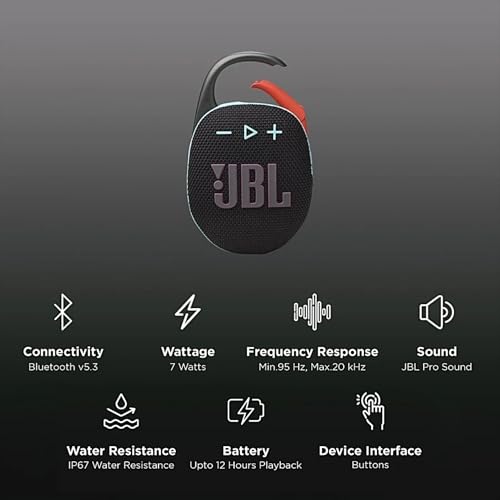
The Clip 5 is ideal for hikers, cyclists, travelers, and anyone who wants quality portable audio without carrying a larger speaker. It’s not designed to be a party speaker — for that, you’d want something in JBL’s Charge or Xtreme line — but for personal and small-group listening, it’s one of the best options available in its size category.
When to Contact JBL Support Directly
If you’ve worked through every fix above and the problem persists, it’s time to reach out to JBL. Here’s what to have ready:
- Serial number (printed inside the USB-C port area or on the original packaging).
- Proof of purchase (Amazon order confirmation works).
- Firmware version (visible in the JBL Portable app under device settings).
- A brief description of the issue and what you’ve already tried.
JBL offers a one-year limited warranty on the Clip 5. Based on verified customer reports, the warranty process is generally straightforward, with most owners receiving a replacement unit within 1–2 weeks.
How We Research
This guide was compiled by synthesizing JBL’s official product documentation, the JBL Portable app support pages, and hundreds of verified customer reviews from major retailers. We did not personally test, own, or handle the JBL Clip 5. Our goal is to curate the most accurate, actionable troubleshooting information available from manufacturer and real-user sources so you can solve problems quickly without wading through forum threads. When we reference what “reviewers report,” we mean verified purchasers whose feedback is publicly available — not invented anecdotes or fabricated testing scenarios.


Leave a Reply