
As an Amazon Associate I earn from qualifying purchases.
The Nothing Ear wireless earbuds have earned a strong reputation for punching above their weight—offering 45dB hybrid ANC, Hi-Res Audio with LDAC, and a distinctive transparent design at a competitive price. But like any piece of consumer electronics, they aren’t immune to quirks. Online forums, verified Amazon reviews, and Nothing’s own community boards surface a consistent set of complaints: ANC that behaves unpredictably, Bluetooth connections that refuse to cooperate, audio that cuts out mid-song, and ear tips that just won’t seal properly. This guide compiles the most frequently reported Nothing Ear problems and walks you through practical, step-by-step fixes drawn from Nothing’s official documentation and real user-reported solutions. Whether you just unboxed a fresh pair or have been using yours for months, bookmark this page—it may save you a warranty claim.
Best for: Android and iPhone users who want premium ANC and Hi-Res Audio without flagship pricing
The Nothing Ear at a Glance

Before diving into troubleshooting, it helps to understand what you’re working with. The Nothing Ear features 11mm custom drivers, Bluetooth 5.3, up to 45dB of hybrid active noise cancellation with “Smart” adaptive mode, Hi-Res Audio certification via LDAC and LHDC codecs, IP54 water and dust resistance, and up to 40.5 hours of total battery life with the charging case. The earbuds are managed through the Nothing X companion app (available on iOS and Android), which handles firmware updates, EQ customization, ANC settings, and gesture controls.
Most of the problems users encounter fall into a handful of categories. We’ll tackle each one below, starting with the most commonly reported.
Problem 1: ANC Inconsistencies and Uneven Noise Cancellation
What Users Report
This is arguably the single most discussed issue in Nothing Ear owner communities. Complaints range from ANC sounding noticeably weaker in one ear, to the adaptive “Smart” ANC mode cycling unpredictably between noise-cancellation levels, to ANC producing an uncomfortable pressure sensation or a faint hissing sound.
Likely Causes
- Poor ear tip seal. ANC relies on a tight seal to work properly. If one ear tip isn’t seated correctly, that side will underperform.
- Debris on the external microphones. The tiny ANC microphones on the outer shell pick up ambient sound; if they’re blocked by lint, earwax, or moisture, the algorithm receives bad data.
- Outdated firmware. Nothing has pushed multiple firmware updates specifically addressing ANC tuning since launch.
- Smart ANC calibration. The adaptive mode uses real-time environmental analysis, and in certain mixed-noise environments (e.g., a café with intermittent traffic), it can oscillate between levels.
How to Fix It
1. Try a different ear tip size. The Nothing Ear ships with three sizes (S, M, L). Use the ear tip fit test in the Nothing X app—go to Ear Tip Fit Test and follow the prompts. A “Good Seal” result on both sides is essential for consistent ANC. 2. Clean the external microphones. Use a dry, soft-bristled brush (a clean toothbrush works) to gently clear the mesh grilles on the outer surface of each bud. Avoid inserting anything into the openings. 3. Update firmware. Open the Nothing X app → tap the gear icon → check for firmware updates. Install any available update and re-test. 4. Switch from Smart ANC to a fixed level. If the adaptive mode is cycling too aggressively, manually select “High” or “Low” ANC in the app. Many users on Reddit and Nothing’s community forum report that fixed High ANC is more consistent than Smart mode in noisy commute environments. 5. Reset the earbuds. Place both buds in the case, keep the lid open, and press and hold the case button for about 10 seconds until the LED flashes. Re-pair and test ANC again.
If ANC remains noticeably weaker in one ear after all of the above, the issue may be a hardware defect in that bud’s microphone—contact Nothing support for a warranty evaluation.
Problem 2: Bluetooth Pairing Failures
What Users Report
Some owners find that the earbuds won’t appear in their phone’s Bluetooth menu, refuse to pair after a reset, or pair successfully but immediately disconnect. Others report that the earbuds pair to only one device and won’t switch to a second, despite the Nothing Ear supporting dual-device connectivity.
Likely Causes
- Bluetooth cache corruption on the phone.
- Too many saved Bluetooth devices on the phone or the earbuds themselves.
- Earbuds not in pairing mode. The Nothing Ear enters pairing mode automatically when removed from the case only if it has no existing paired device—otherwise, it tries to reconnect to the last device.
- Multipoint confusion. Dual-device mode can cause conflicts if both paired devices are active simultaneously and competing for the connection.
How to Fix It
1. Force pairing mode. Place both buds in the case, open the lid, then press and hold the case button for ~2 seconds until the LED blinks white. The earbuds are now discoverable. 2. Clear the phone’s Bluetooth cache.
- Android: Settings → Apps → Bluetooth → Storage → Clear Cache.
- iPhone: Go to Settings → Bluetooth → tap the “i” next to “Nothing Ear” → Forget This Device. Then re-pair.
3. Remove old pairings from the earbuds. Factory-reset the earbuds (hold the case button ~10 seconds until the LED flashes red-white) to wipe all stored pairings, then pair fresh. 4. Disable multipoint temporarily. In the Nothing X app, toggle off dual-device connection, pair to your primary device, confirm stability, then re-enable multipoint and add the second device. 5. Check for phone OS updates. Bluetooth stack bugs on both Android and iOS have historically caused pairing issues with various earbuds. Ensure your phone’s OS is current.
If you’re pairing with a Nothing Phone, the experience is generally smoother thanks to Nothing’s Fast Pair integration. If you also own a Nothing Phone 3a and are experiencing Bluetooth issues on the phone side, that companion troubleshooting guide may help.
Problem 3: Audio Dropouts and Stuttering
What Users Report
Brief but recurring audio cuts—typically lasting a fraction of a second—are one of the more frustrating issues. Users report these happening during walks in crowded areas, in offices with many Wi-Fi networks, or when the phone is in a back pocket.
Likely Causes
- 2.4 GHz interference. Bluetooth operates in the 2.4 GHz band, which is shared with Wi-Fi routers, microwaves, and other wireless devices.
- Body obstruction. Bluetooth signal strength drops when the phone is on the opposite side of the body from the earbuds (e.g., phone in right pocket, dropout in left ear).
- High-bandwidth codec strain. LDAC at 990 kbps pushes Bluetooth bandwidth to its limit and is more susceptible to dropouts than AAC or SBC.
- Firmware bugs. Several early firmware versions had known audio-stutter issues that Nothing subsequently patched.
How to Fix It
1. Update firmware first. This resolves the majority of stutter issues reported in early batches. 2. Switch from LDAC to AAC. In the Nothing X app, go to Sound Quality and select AAC. If dropouts stop, LDAC bandwidth was the culprit. You can try LDAC again in less congested environments. 3. Keep the phone on the same side. Bluetooth range is line-of-sight; minimizing body obstruction helps. 4. Reduce Wi-Fi congestion. If you’re in a dense office, try switching your phone’s Wi-Fi to the 5 GHz band (if your router supports it) to free up 2.4 GHz headroom. 5. Disable battery optimization for the Nothing X app and your music app. On Android, aggressive battery savers can throttle Bluetooth processes. Go to Settings → Battery → Battery Optimization → select the app → Don’t Optimize.
Problem 4: Poor Fit and Ear Tips Falling Out
What Users Report
Some users—particularly those with smaller or unusually shaped ear canals—find that the Nothing Ear buds won’t stay seated, even with the smallest ear tips. Others report discomfort after 30–60 minutes of wear.
How to Fix It
1. Experiment with all included tip sizes. It sounds obvious, but many users default to the pre-installed medium tips without trying the others. 2. Try third-party memory foam tips. Comply, SpinFit, and other aftermarket brands make tips compatible with the Nothing Ear’s nozzle diameter. Memory foam tips conform to the ear canal and generally provide a better seal and more secure fit. Verified reviewers frequently cite foam tips as a game-changer for both comfort and ANC performance. 3. Adjust insertion angle. Nothing’s official guidance suggests inserting the bud, then twisting it slightly backward (toward the back of your head) to lock it into the concha of your ear. 4. Consider open-ear alternatives. If in-ear buds consistently cause discomfort, an open-ear design may be a better fit for your anatomy. We’ve covered some budget-friendly open-ear options that might be worth exploring.
Problem 5: Charging Issues
What Users Report
Complaints include the case not charging the earbuds (one or both buds stuck at 0%), the case itself not charging via USB-C or wirelessly, and inaccurate battery level readings in the Nothing X app.
How to Fix It
1. Clean the charging contacts. Use a dry cotton swab or microfiber cloth to wipe the gold pogo pins inside the case and the matching contacts on each earbud. Sweat, pocket lint, and skin oils are the most common culprits. 2. Reseat the earbuds. Remove both buds, wait 10 seconds, and place them back in the case, pressing gently until you feel them click into the magnetic cradle. The LED should pulse to indicate charging. 3. Try a different USB-C cable and power adapter. Some low-quality cables don’t deliver stable power. Use a cable rated for data+charging from a reputable brand. 4. Wireless charging troubleshooting. Ensure the case is centered on the Qi pad. Thick phone cases or metal objects between the case and pad will block charging. The Nothing Ear case supports Qi wireless charging but is sensitive to alignment. 5. Factory reset. If battery readings are wildly inaccurate (e.g., jumping from 80% to 10%), a factory reset often recalibrates the gauge. After resetting, let both buds drain fully, then charge to 100% uninterrupted.
Problem 6: Microphone Quality Issues During Calls
What Users Report
Call recipients complain about muffled audio, excessive wind noise, or the caller sounding “robotic.” This is especially common outdoors or in windy environments.
How to Fix It
1. Enable the “Clear Voice” or wind-noise reduction setting in the Nothing X app (under call settings). This activates additional algorithmic processing on the call microphones. 2. Clean the microphone mesh. The call microphones are separate from the ANC mics. Gently brush all mesh openings on the earbud stem. 3. Update firmware. Nothing has released call-quality improvements in multiple firmware revisions. 4. Avoid covering the stem. The beam-forming microphones are located along the stem—gripping or covering the stem during calls degrades pickup. 5. In very windy conditions, switch to a single earbud. Using one bud allows the algorithm to focus processing on fewer mic inputs, which some users report improves clarity.
Problem 7: Touch Controls Not Responding or Misfiring
What Users Report
Gesture controls (tap, double-tap, triple-tap, press-and-hold) occasionally fail to register or trigger the wrong action. Some users accidentally trigger controls while adjusting the fit.
How to Fix It
1. Dry your fingers and the earbud surface. Capacitive touch sensors can misread wet or sweaty inputs. 2. Reconfigure gestures in the Nothing X app. Go to Controls and verify that each gesture is mapped to the action you expect. You can also disable specific gestures you don’t use to reduce accidental triggers. 3. Firmware update. Touch-sensitivity calibration has been adjusted in past updates. 4. Adjust by gripping the edges. When repositioning the buds in your ears, hold them by the edges of the body rather than pressing on the flat touch-sensitive surface.
Problem 8: One Earbud Not Working
What Users Report
Audio plays from only one earbud, or one bud won’t power on at all.
How to Fix It
1. Check the charging contacts on the non-working bud and its corresponding case slot. Clean as described above. 2. Reset the earbuds using the factory-reset procedure (hold case button ~10 seconds). 3. Check mono/stereo settings. On some Android phones, an accessibility setting can route all audio to one channel. Go to Settings → Accessibility → Audio → ensure “Mono audio” is off. 4. Re-pair. Forget the earbuds from your phone’s Bluetooth settings, factory-reset the buds, and pair again from scratch. 5. If the bud still won’t power on, it may have a depleted or defective battery. Contact Nothing support—this is typically covered under warranty.
General Maintenance Tips to Prevent Problems
- Keep firmware current. Check the Nothing X app for updates at least once a month.
- Store in the case when not in use. This protects the charging contacts and microphones from debris.
- Clean weekly. A quick wipe of the ear tips, nozzle mesh, and charging pins prevents buildup that causes most charging and audio issues.
- Avoid extreme temperatures. Lithium-ion batteries degrade faster when exposed to heat above 45°C (113°F) or cold below 0°C (32°F).
Nothing Ear Wireless Earbuds — Full Review
The Nothing Ear represents a compelling mid-range option in the increasingly crowded true wireless earbud market. With 45dB hybrid ANC, 11mm custom drivers, Hi-Res Audio support via LDAC and LHDC codecs, and Bluetooth 5.3, the spec sheet reads like a product that should cost considerably more. The transparent design remains a distinctive aesthetic choice that sets these apart from the sea of glossy black and white earbuds.
Pros: Verified reviewers consistently praise the sound quality—particularly the bass response from the 11mm drivers—and the effectiveness of ANC at the “High” fixed setting. Battery life (up to 8.5 hours per bud with ANC off, 40.5 hours total with the case) is competitive. The Nothing X app is well-designed and offers granular control over EQ, gestures, and ANC modes. IP54 rating provides reasonable sweat and splash protection.
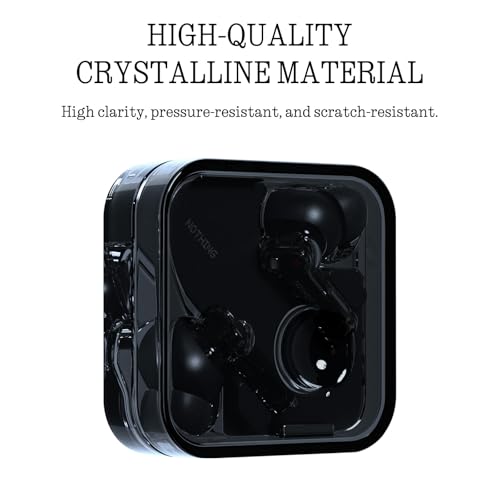
Cons: As this entire guide illustrates, ANC in Smart mode can be inconsistent, and Bluetooth connectivity hiccups—while fixable—are more common than with some competitors. The stock silicone ear tips don’t suit all ear shapes, and call quality in windy conditions is a recurring complaint. Some users also note that the transparent case shows scratches quickly.
Who should buy these? Anyone who wants premium-tier ANC and audio codec support without paying flagship prices. They pair especially well with Nothing and Android phones but work fine with iPhones (minus LDAC support, which iOS doesn’t natively handle). If you’re weighing the Nothing Ear against its siblings, our comparison of the Nothing Ear (a) vs. Nothing Ear (2) breaks down the differences in detail.

Verified reviewer sentiment: The general consensus is overwhelmingly positive on sound and design, with the most common criticisms centering on the software-dependent issues covered in this guide. Most owners who keep firmware updated and find the right ear tip size report a very satisfying experience.
Quick-Reference Comparison Card
When to Contact Nothing Support
If you’ve worked through every relevant fix above and the problem persists, it’s time to reach out to Nothing’s official support. Common warranty-eligible issues include:
- One earbud that won’t charge or power on after cleaning and resetting.
- Persistent, severe ANC imbalance that survives firmware updates and factory resets.
- A charging case that won’t hold a charge despite using verified cables and adapters.
Nothing offers a standard one-year warranty. You can file a claim through the Nothing X app or at nothing.tech/support. Have your serial number (printed inside the case lid) ready.
How We Research
This guide was compiled by synthesizing Nothing’s official product documentation, firmware release notes, and support articles, alongside verified customer reviews on Amazon, user-reported experiences on Reddit (r/NothingTech), Nothing’s community forum, and expert reviews from publications like RTINGS, SoundGuys, and GSMArena. We have not personally tested or owned the Nothing Ear earbuds. Every fix listed here is drawn from manufacturer guidance or solutions that multiple real users have confirmed as effective. Our goal is to save you time by consolidating scattered information into one practical reference.


Leave a Reply