
As an Amazon Associate I earn from qualifying purchases.
The Nothing Phone 3a is an impressive mid-range smartphone with its 6.77-inch 120Hz AMOLED display, Snapdragon 7s Gen 3 processor, and 50MP triple camera system — but like any modern phone, it’s not immune to quirks and issues. Whether you’re dealing with unexpected battery drain, Bluetooth dropouts, or a camera that won’t cooperate, this guide synthesizes reported owner experiences, manufacturer documentation, and known software behaviors to help you resolve problems on your own. We’ve organized everything by symptom so you can jump straight to the fix you need.
Best for: Nothing Phone 3a owners looking to solve common problems without contacting support
Battery Drain and Charging Problems
Battery life is one of the most frequently discussed topics among Nothing Phone 3a owners. The 5000mAh cell should comfortably last a full day, but several factors can cause faster-than-expected drain.
Excessive Battery Drain
Symptoms: Phone loses more than 20% overnight on standby, or dies before the end of a normal usage day.
Fixes to try:
1. Check battery usage stats. Go to Settings → Battery and review which apps are consuming the most power. Rogue apps running background processes are the most common culprit. 2. Disable adaptive brightness temporarily. While adaptive brightness is generally efficient, some users report the ambient light sensor on the 3a can be overly aggressive, causing the display to ramp up brightness unnecessarily. Try manual brightness for a day to compare. 3. Turn off Always-On Display (AOD). The Glyph interface and AOD features are signature Nothing touches, but they do consume power. Disabling AOD in Settings → Display → Lock screen can reclaim meaningful battery life. 4. Restrict background activity. For apps you don’t need real-time notifications from, go to Settings → Apps → [App Name] → Battery and select “Restricted.” 5. Check for Nothing OS updates. Nothing has historically pushed battery optimization improvements through OTA updates. Make sure you’re on the latest build via Settings → System → System update. 6. Factory reset as a last resort. If drain started after a major OS update, a clean reset sometimes resolves underlying database or cache corruption.
Slow or Inconsistent Charging
Symptoms: Phone charges slowly even with the original cable, or charging speed fluctuates.
Fixes to try:
- Use a compatible charger. The Nothing Phone 3a supports 45W wired fast charging, but only with USB-PD compatible chargers. Using an older 5V/1A adapter will charge at a fraction of the speed.
- Clean the USB-C port. Lint and debris accumulate over time and can cause intermittent contact. Use a wooden or plastic toothpick — never metal — to gently clear the port.
- Disable battery optimization features while charging. Nothing OS includes adaptive charging that intentionally slows charging to preserve long-term battery health. You can toggle this in Settings → Battery → Adaptive charging.
- Try a different cable. Not all USB-C cables support the same power delivery. A cable rated for 3A or higher is recommended.
Display and Screen Issues
The 6.77-inch AMOLED panel is one of the Phone 3a’s highlights, but a few display-related issues have been reported by owners.
Green Tint or Color Shift at Low Brightness
Symptoms: A subtle green or pinkish tint visible on gray backgrounds, especially at low brightness levels.
This is a known characteristic of OLED panels in general, not unique to Nothing. However, some units may exhibit it more noticeably than others.
Fixes to try:
- Adjust color profile. Go to Settings → Display → Colors and switch between “Vivid” and “Natural” modes. Some users find that Natural mode reduces the perceived tint.
- Increase minimum brightness slightly. The tint is most visible at the lowest brightness levels. Bumping brightness up one or two notches often eliminates it.
- If severe, contact Nothing support. A pronounced, uneven green tint at normal brightness levels may indicate a panel defect covered under warranty.
Screen Flickering
Symptoms: Visible flicker, especially at lower brightness settings.
OLED displays use PWM (Pulse Width Modulation) dimming, which can cause perceptible flicker for sensitive users. The Nothing Phone 3a uses DC dimming at certain brightness ranges, but PWM may kick in at very low levels.
Fixes to try:
- Enable DC dimming if available. Check Settings → Display for a DC dimming or flicker-free option. Nothing has included this toggle in some Nothing OS builds.
- Use the “Extra dim” accessibility feature (Settings → Accessibility → Extra dim) as an alternative to setting brightness extremely low.
Touch Responsiveness Issues
Symptoms: Missed taps, ghost touches, or delayed response.
Fixes to try:
1. Remove the screen protector temporarily. Thick or poorly applied tempered glass protectors can interfere with the touch digitizer. Test without it to isolate the issue. 2. Increase touch sensitivity. Go to Settings → Display and enable the “Increase touch sensitivity” option (designed for use with screen protectors). 3. Reboot into Safe Mode. Hold the power button, then long-press “Power off” to enter Safe Mode. If touch works normally, a third-party app is likely interfering.
Connectivity Problems
Wi-Fi Dropping or Slow Speeds
Symptoms: Wi-Fi disconnects randomly, fails to reconnect, or delivers speeds well below what other devices achieve on the same network.
Fixes to try:
- Forget and re-add the network. Go to Settings → Network & internet → Wi-Fi, tap the network, and select “Forget.” Then reconnect with the password.
- Toggle airplane mode. A quick airplane mode cycle can reset the wireless radios and resolve transient connection issues.
- Switch Wi-Fi bands. If your router broadcasts both 2.4GHz and 5GHz on the same SSID, the phone may hop between them. Try connecting to the 5GHz band specifically for better speed and stability.
- Reset network settings. Go to Settings → System → Reset options → Reset Wi-Fi, mobile & Bluetooth. This clears all saved networks and Bluetooth pairings but often resolves persistent connectivity bugs.
- Check for router firmware updates. Sometimes the issue is on the router side, especially with Wi-Fi 6E routers that may have compatibility quirks with certain chipsets.
Bluetooth Pairing and Audio Issues
Symptoms: Bluetooth devices won’t pair, audio cuts out, or there’s noticeable latency with wireless earbuds.
Fixes to try:
- Unpair and re-pair the device. Remove the Bluetooth device from Settings → Connected devices, then pair it fresh.
- Check codec settings. The Snapdragon 7s Gen 3 supports aptX, AAC, and SBC codecs. In Developer options → Bluetooth audio codec, try switching to a different codec to see if stability improves.
- Disable battery optimization for Bluetooth-dependent apps. If you’re using Spotify or another streaming app, restricting its background activity can cause audio dropouts.
- Keep firmware updated on both devices. Earbuds and speakers often receive firmware updates that improve Bluetooth stability.
If you enjoy troubleshooting your tech, you might also find our JBL Clip 5 troubleshooting guide helpful for resolving common Bluetooth speaker issues.
Mobile Data / 5G Issues
Symptoms: No mobile data, slow 5G speeds, or the phone keeps dropping to 4G.
Fixes to try:
- Verify APN settings. Go to Settings → Network & internet → SIMs → Access Point Names and ensure the correct APN for your carrier is selected. Your carrier’s website will list the correct values.
- Toggle preferred network type. In Settings → Network & internet → SIMs → Preferred network type, try switching between 5G/4G/3G and 4G/3G to see if stability improves. In areas with weak 5G coverage, locking to 4G often provides a more reliable experience.
- Re-seat the SIM card. Power off the phone, remove the SIM tray, clean the SIM card contacts gently, and reinsert.
Camera Problems
The 50MP triple camera system is a key selling point, but a few camera-related issues have surfaced in owner reports.
Camera App Crashes or Freezes
Symptoms: The camera app closes unexpectedly, freezes on launch, or shows a black screen.
Fixes to try:
1. Clear the camera app cache. Go to Settings → Apps → Camera → Storage & cache → Clear cache. Do not clear storage unless clearing cache doesn’t help, as this resets your camera preferences. 2. Check for app updates. Nothing sometimes pushes camera improvements through the Play Store rather than full OS updates. 3. Restart the phone. A simple reboot resolves most transient camera crashes. 4. Check available storage. If your phone’s storage is nearly full, the camera may not have enough space to buffer photos or video. Free up at least 2-3 GB.
Poor Low-Light Photo Quality
Symptoms: Grainy, blurry, or washed-out photos in dim environments.
Fixes to try:
- Use Night Mode explicitly. While the camera should auto-detect low light, manually selecting Night Mode from the camera modes ensures the phone uses longer exposure and computational photography.
- Keep the phone steady. Night Mode requires a longer exposure. Even slight hand movement causes blur. Prop the phone against a stable surface or use a tripod.
- Clean the lens. Fingerprints and smudges scatter light and dramatically reduce image quality, especially in low light. Wipe with a microfiber cloth.
Glyph Interface Not Working as Expected
The Glyph LED system on the back of the Nothing Phone 3a is a distinctive feature, but it can sometimes behave unexpectedly.
Symptoms: Glyph lights not activating for notifications, wrong patterns, or Glyph not syncing with ringtones.
Fixes to try:
- Check Glyph settings. Go to Settings → Glyph Interface and verify that notifications are enabled for the apps you want.
- Ensure Do Not Disturb is off. DND mode suppresses Glyph notifications by default.
- Update Nothing OS. Glyph functionality is tightly integrated with the OS, and updates frequently refine its behavior.
Performance and Software Issues
General Slowdowns or Lag
Symptoms: Apps take longer to open, animations stutter, or the phone feels sluggish.
The Snapdragon 7s Gen 3 is a capable chipset, so persistent lag usually points to a software issue rather than a hardware limitation.
Fixes to try:
1. Restart the phone. This clears temporary memory and background processes. 2. Check for Nothing OS updates. Performance optimizations are a regular part of Nothing’s update cycle. 3. Reduce animation scale. In Developer options (tap Build number 7 times in About phone to unlock), set Window animation scale, Transition animation scale, and Animator duration scale to 0.5x or Off. 4. Uninstall unused apps. Even apps you don’t actively use can run background services that consume RAM and CPU. 5. Factory reset. If the phone was updated from a previous Nothing OS version, a clean install can resolve accumulated software conflicts.

Apps Crashing or Force Closing
Symptoms: Specific apps crash repeatedly.
Fixes to try:
- Clear the app’s cache and data. Settings → Apps → [App Name] → Storage & cache.
- Update the app. Check the Play Store for pending updates.
- Check app compatibility. Some apps may not yet be fully optimized for Nothing OS or the specific Android version running on the 3a.
- Update Android System WebView. Many apps rely on WebView for rendering content. Search for “Android System WebView” in the Play Store and update it.
Overheating
Symptoms: Phone becomes uncomfortably warm during gaming, video calls, or charging.
Some warmth is normal, especially during intensive tasks. However, if the phone displays a temperature warning or throttles performance, action is needed.
Fixes to try:
- Remove the case while charging. Cases trap heat and can significantly increase charging temperatures.
- Avoid using the phone while charging. This generates heat from both the charging circuit and the processor simultaneously.
- Close background apps. Swipe away apps you’re not using from the recent apps screen.
- Check for rogue apps. In Settings → Battery, look for apps consuming disproportionate CPU time.
Audio Issues
Speaker Distortion or Low Volume
Symptoms: Tinny sound, crackling at high volume, or overall low speaker output.
Fixes to try:
- Check for debris. The speaker grilles can accumulate dust. Use a soft brush to clean them.
- Disable Dolby Atmos or audio enhancements. Sometimes audio processing effects cause distortion. Toggle these off in Settings → Sound & vibration.
- Test in Safe Mode. If a third-party equalizer app is installed, it may be conflicting with the system audio pipeline.
Calls Sound Muffled or Distant
Symptoms: The other party sounds muffled, or they report that you sound distant.
Fixes to try:
- Clean the earpiece and microphone. Use a soft brush on the earpiece grille at the top of the phone and the microphone pinhole at the bottom.
- Disable noise cancellation. Some users report that the AI noise cancellation feature can be overly aggressive, filtering out parts of speech. Check Settings → Sound & vibration → Call noise cancellation.
- Test with a headset. If calls sound fine through wired or Bluetooth headphones, the issue is likely hardware-related with the earpiece speaker.
Fingerprint Scanner Issues
Symptoms: The in-display fingerprint scanner is slow, inconsistent, or fails to recognize registered fingerprints.
Fixes to try:
1. Re-register your fingerprints. Delete existing fingerprints in Settings → Security → Fingerprint and re-add them. When registering, cover the entire surface of your fingertip, including edges. 2. Register the same finger twice. This gives the scanner more data points and can improve recognition rates. 3. Clean the screen. Oils and smudges over the scanner area reduce accuracy. 4. Remove thick screen protectors. Some tempered glass protectors interfere with optical fingerprint scanners. If you must use one, enable “Increase touch sensitivity” in Display settings. 5. Update Nothing OS. Fingerprint scanner algorithms are frequently improved through software updates.
When to Contact Nothing Support
If you’ve worked through the relevant fixes above and the problem persists, it may be a hardware defect. Issues that typically require professional attention include:
- Persistent green/pink display tint at normal brightness (possible panel defect)
- Charging port that won’t hold a cable (physical damage)
- Complete Bluetooth or Wi-Fi failure after reset (possible antenna issue)
- Consistent overheating with minimal usage (possible battery or board issue)
Nothing offers support through their app (Nothing App → Support) and their website. If your phone is under warranty, hardware defects should be covered at no cost.
For those interested in Nothing’s broader ecosystem and accessory compatibility, our Nothing Phone 4a Pro compatibility guide covers standards and accessories that often overlap with the 3a series.
Nothing Phone (3a) — Product Overview
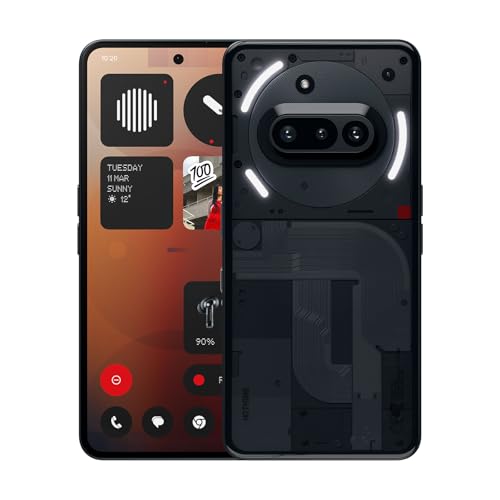
The Nothing Phone (3a) represents Nothing’s mid-range philosophy: deliver flagship-adjacent features at a more accessible price point. Built around the Qualcomm Snapdragon 7s Gen 3 processor, it offers solid everyday performance for multitasking, social media, and moderate gaming. The 6.77-inch 120Hz AMOLED display is vibrant and smooth, making it a pleasure for content consumption and scrolling. The 50MP triple camera system handles most photography scenarios well, with particular strength in daylight conditions.
What sets the Phone 3a apart from competitors is Nothing’s signature Glyph interface — the LED light array on the back that provides visual notifications, charging indicators, and even syncs with music. It’s a polarizing feature: some owners love the uniqueness, while others find it gimmicky after the novelty wears off. The 5000mAh battery with 45W fast charging is competitive for the segment, and most verified reviewers report getting through a full day with moderate to heavy use.
On the downside, owner reports commonly mention occasional software bugs in Nothing OS (particularly after major updates), and the fingerprint scanner can be inconsistent compared to flagship phones. The camera’s low-light performance, while improved over previous Nothing phones, still trails behind Pixel and Samsung competitors in the same price range. Nothing’s update track record has been improving, but some users express frustration with the pace of bug fixes.
Who should buy this: Anyone who wants a distinctive, well-designed Android phone with solid specs and doesn’t mind occasionally troubleshooting software quirks. It’s best suited for users who value design and personality in their tech over pure spec-sheet dominance.
Quick-Reference Troubleshooting Checklist
Before diving into specific fixes, try these universal steps first — they resolve the majority of issues:
1. Restart the phone. Fixes more problems than you’d expect. 2. Check for Nothing OS updates. Settings → System → System update. 3. Update all apps. Open the Play Store → tap your profile → Manage apps & device → Update all. 4. Reset network settings if the issue is connectivity-related. 5. Boot into Safe Mode to rule out third-party app conflicts. 6. Factory reset as a last resort (back up your data first).
If you’re someone who likes to stay on top of troubleshooting across all your devices, our Satechi Mac Mini M4 Hub troubleshooting guide follows a similar practical approach for a very different product.
How We Research
This troubleshooting guide was compiled by synthesizing publicly available manufacturer documentation from Nothing, official Nothing OS changelogs, verified customer reviews on major retail platforms, community forum discussions (including Nothing’s own community forums and Reddit), and expert reviews from established tech publications. We have not personally tested or owned the Nothing Phone 3a. Our goal is to aggregate the most commonly reported issues and the fixes that owners and official sources confirm as effective, so you get reliable guidance without needing to open a support ticket. If you spot an issue we haven’t covered, the Nothing community forums are an excellent resource for emerging fixes.


Leave a Reply