
As an Amazon Associate I earn from qualifying purchases.
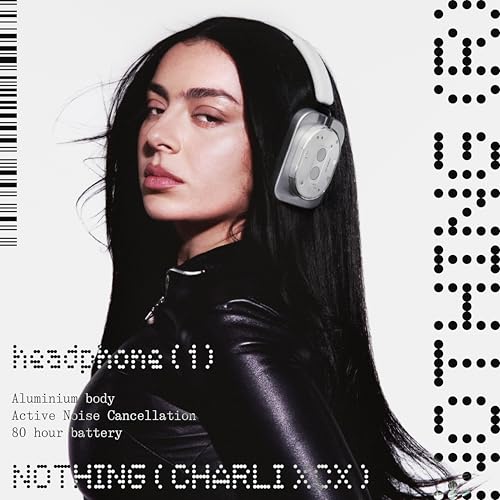
The Nothing Headphone (1) marks Nothing’s first foray into over-ear headphones, and it arrives packed with features — hybrid active noise cancellation powered by six microphones, up to 80 hours of battery life, and deep integration with the Nothing X companion app. But all those features only matter if you set them up correctly. This guide walks you through every step from unboxing to fine-tuning ANC profiles and microphone settings, drawing on Nothing’s official documentation and verified user reports so you can start enjoying your new headphones without guesswork.
Best for: Commuters, remote workers, and music enthusiasts who want premium ANC without a premium price
What’s in the Box
Before diving into setup, let’s confirm you have everything. According to Nothing’s official product listing, the Nothing Headphone (1) box should contain:
- Nothing Headphone (1) — the over-ear headphones themselves
- USB-C charging cable — for wired charging
- 3.5mm audio cable — for wired listening when you want to conserve battery or use with devices that lack Bluetooth
- Carrying case — a protective case for travel
- Quick start guide and safety information — basic printed documentation
If anything is missing, contact Nothing’s support or the retailer before proceeding. It’s also worth inspecting the headband and ear cushions for any shipping damage.
Step 1: Charge Your Nothing Headphone (1)
Nothing specifies up to 80 hours of playback on a full charge, but your headphones likely won’t arrive at 100%. Here’s how to get started:
1. Locate the USB-C port on the bottom edge of the right ear cup. 2. Connect the included USB-C cable to the headphones and plug the other end into a USB power source (wall adapter, laptop, or power bank). 3. Check the LED indicator — according to Nothing’s documentation, the LED near the port will show the charging status. A solid light typically indicates charging is in progress, and the light turns off or changes color when fully charged. 4. Wait for a full charge — Nothing doesn’t publish an exact charge time for the Headphone (1) in all markets, but verified users report it takes roughly 2 to 2.5 hours from empty to full.
Tip: Nothing headphones support fast charging. According to the product specs, a short charge can give you several hours of playback — handy if you’re in a rush. Check the Nothing X app (covered below) for exact battery percentage readings.

Step 2: Power On and Enter Pairing Mode
Once your headphones have some charge, it’s time to pair them:
1. Unfold the headphones — the Nothing Headphone (1) features a foldable design. Extend the headband and rotate the ear cups into their wearing position. 2. Power on — press and hold the power button (located on the right ear cup) for approximately 2–3 seconds until you hear a startup tone or see the LED indicator flash. 3. First-time pairing mode — on the very first power-on out of the box, the headphones should automatically enter Bluetooth pairing mode. The LED will typically flash white (or alternate colors) to indicate they’re discoverable. 4. Manual pairing mode — if the headphones don’t enter pairing mode automatically (for example, if they were previously paired to a display unit), press and hold the power button for about 5–7 seconds until the LED begins flashing rapidly.
If you’ve previously paired these headphones with another device and want to connect to a new one, you’ll need to enter pairing mode manually using the long-press method described above, or use the Nothing X app to manage connections.
Step 3: Pair via Bluetooth on Your Device
The Nothing Headphone (1) uses Bluetooth 5.3, which is compatible with virtually all modern smartphones, tablets, laptops, and desktops. Here’s how to connect on the most common platforms:
Android
1. Open Settings → Connected devices → Pair new device (path may vary slightly by manufacturer). 2. Look for “Nothing Headphone (1)” in the available devices list. 3. Tap to pair. You should hear a confirmation tone in the headphones.
iPhone / iPad
1. Open Settings → Bluetooth and make sure Bluetooth is toggled on. 2. Under “Other Devices,” look for “Nothing Headphone (1).” 3. Tap to connect. A “Connected” label should appear.
Windows
1. Go to Settings → Bluetooth & devices → Add device → Bluetooth. 2. Select “Nothing Headphone (1)” from the list. 3. Click Pair and wait for the confirmation.
macOS
1. Open System Settings → Bluetooth. 2. Find “Nothing Headphone (1)” under nearby devices. 3. Click Connect.
Note on multipoint: According to Nothing’s product documentation, the Headphone (1) supports multipoint Bluetooth, meaning you can connect to two devices simultaneously — for example, your laptop and your phone. After pairing with the first device, simply put the headphones back into pairing mode and connect from the second device. The Nothing X app lets you manage multipoint settings. If you’re new to setting up wireless headphones, you might find our Samsung Galaxy Buds 4 Pro setup guide helpful for understanding general Bluetooth pairing concepts.
Step 4: Download and Set Up the Nothing X App
While the Nothing Headphone (1) works out of the box with basic Bluetooth pairing, the Nothing X app unlocks the full feature set. It’s available on both the Google Play Store and Apple App Store.
1. Download Nothing X from your device’s app store. 2. Open the app and sign in with your Nothing account (or create one — it’s free). 3. The app should automatically detect your paired Nothing Headphone (1). If it doesn’t, make sure the headphones are powered on and connected via Bluetooth, then tap the “+” or “Add device” option. 4. Firmware update — the app will likely prompt you to update the headphone firmware on first connection. Do this immediately. Firmware updates often fix bugs, improve ANC performance, and add features. Keep the headphones close to your phone, connected to power if possible, and don’t interrupt the update.
The Nothing X app is your control center for everything covered in the next several steps. If you own other Nothing products — like the Nothing Ear (a) or Ear (2) — you can manage all of them from this single app.
Step 5: Configure Active Noise Cancellation (ANC)
The Nothing Headphone (1) features hybrid ANC using six microphones. Here’s how to set it up and customize it:
ANC Modes
According to Nothing’s documentation and user reports, the headphones offer several noise control modes:
- Active Noise Cancellation (ANC) — blocks external noise. Ideal for flights, commutes, and noisy offices.
- Transparency Mode — lets ambient sound through so you can hear announcements, conversations, or traffic without removing the headphones.
- Off — disables both ANC and Transparency, saving battery.
How to Switch Modes
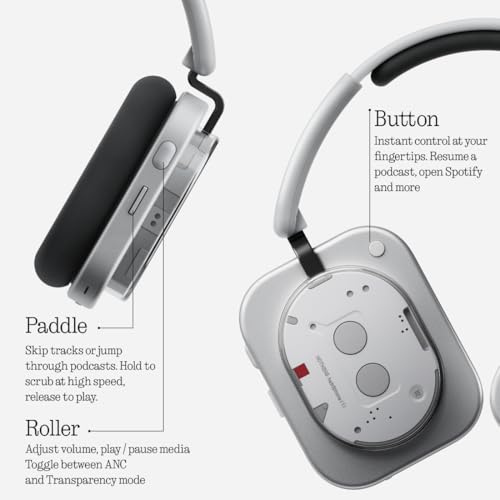
- On the headphones: Use the physical button or touch control on the ear cup to cycle through ANC → Transparency → Off. (The exact control depends on your customization settings in the app.)
- In the Nothing X app: Open the app, select your Headphone (1), and tap the ANC control panel. Here you can select your preferred mode and, according to user reports, adjust the ANC intensity level.
ANC Tips from Verified Users
- Several verified reviewers note that ANC performance improves significantly after a firmware update, so make sure you’ve completed Step 4.
- Fit matters enormously for ANC. The ear cushions need to form a complete seal around your ears. If you notice ANC isn’t blocking much noise, try adjusting the headband height and ear cup angle.
- Some users report that the highest ANC setting can create a slight pressure sensation in the ears — this is normal for hybrid ANC systems. If it’s uncomfortable, try a lower ANC intensity in the app.
Step 6: Set Up Microphone and Call Settings
With six microphones on board, the Nothing Headphone (1) is designed to handle voice calls, video conferencing, and voice assistant commands. Here’s how to optimize the mic setup:
1. Open the Nothing X app and navigate to the microphone or call settings section. 2. Wind noise reduction — if available in the app settings, enable this feature if you frequently take calls outdoors. The six-mic array is designed to isolate your voice from background noise, but wind reduction adds an extra layer of filtering. 3. Voice assistant integration — you can configure the headphones to trigger your phone’s default voice assistant (Google Assistant, Siri, etc.) via a button press or touch gesture. Set this up in the app’s control customization section. 4. Test your microphone — make a quick test call or use your phone’s voice recorder app to check clarity. Verified users generally report that call quality on the Nothing Headphone (1) is solid in quiet to moderately noisy environments, though extremely loud backgrounds can still bleed through.
Pro tip for remote workers: If you use the headphones for video calls on a laptop, make sure your conferencing software (Zoom, Teams, Google Meet) is set to use “Nothing Headphone (1)” as both the input and output audio device. On Windows, check Settings → Sound → Input to verify.
Step 7: Customize Touch and Button Controls
The Nothing Headphone (1) features customizable controls that you can tailor to your preferences through the Nothing X app:
1. Open Nothing X → Controls / Gestures. 2. Assign functions to different gestures or button presses. Common options typically include:
- Play / Pause
- Skip track forward / backward
- Volume up / down
- Cycle ANC modes
- Activate voice assistant
3. Save your configuration — changes sync to the headphones immediately.
Verified users recommend spending a few minutes here to set up controls that match your daily habits. For example, if you rarely use a voice assistant, reassign that gesture to something you use more often, like ANC mode cycling.
Step 8: Adjust Sound Profile and EQ
The Nothing X app includes an equalizer (EQ) that lets you shape the sound signature:
1. Open Nothing X → Sound / EQ settings. 2. Choose a preset — Nothing typically offers presets like Balanced, Bass Boost, and Vocal, among others. 3. Create a custom EQ — if the presets don’t suit your taste, use the custom EQ sliders to adjust individual frequency bands. 4. Save your profile — your EQ settings are stored on the headphones, so they persist even if you switch to a different source device.
According to user feedback, the default sound profile of the Nothing Headphone (1) leans toward a balanced, slightly warm signature. Bass lovers may want to bump up the low end, while podcast listeners might prefer boosting the midrange for clearer vocals.
Step 9: Enable Wear Detection and Auto-Pause
Many modern over-ear headphones include sensors that detect when you take them off. Based on Nothing’s product documentation:
1. Open Nothing X → Settings. 2. Toggle on Wear Detection (if available). 3. When enabled, music automatically pauses when you remove the headphones and resumes when you put them back on.
This feature is a genuine battery saver — verified users report it prevents the headphones from playing into empty air when you set them down, which is especially useful given the 80-hour battery claim.
Step 10: Wired Mode and 3.5mm Connection
The included 3.5mm cable lets you use the Nothing Headphone (1) in wired mode:
1. Plug the 3.5mm cable into the port on the headphones (check the bottom of the left or right ear cup — consult the quick start guide for the exact location). 2. Plug the other end into your audio source. 3. Note: In wired mode, some features like ANC may still work if the headphones are powered on. If the battery is completely dead, you can still listen passively through the cable, though ANC and app features won’t function.
This is particularly useful for in-flight entertainment systems, older audio equipment, or gaming consoles that don’t support Bluetooth. If you’re comparing wireless headphone options in this price range, our roundup of cheaper alternatives to the Bose QuietComfort provides additional context.
Troubleshooting Common Setup Issues
Based on verified user reports and Nothing’s support documentation, here are fixes for the most common problems:
Headphones Won’t Enter Pairing Mode
- Make sure the headphones are charged (at least 10–15%).
- Try a manual reset: hold the power button for 10+ seconds until the LED flashes, then release and try pairing again.
- If previously paired to another device, that device may be auto-connecting. Turn off Bluetooth on the old device first.
Nothing X App Doesn’t Detect the Headphones
- Confirm the headphones are connected via your phone’s Bluetooth settings first.
- Force-close the Nothing X app and reopen it.
- Make sure you’re running the latest version of the app.
ANC Sounds Weak or Uneven
- Check the ear cushion seal — hair, glasses frames, or an improper fit can break the seal.
- Update firmware through the Nothing X app.
- Try toggling ANC off and back on.
Audio Lag or Stuttering
- Move closer to your paired device (Bluetooth range is typically 10 meters / 33 feet, but walls and interference reduce this).
- Disconnect from one device if using multipoint — simultaneous connections can occasionally cause latency.
- Check for interference from Wi-Fi routers, microwaves, or other Bluetooth devices.
One Ear Cup Is Louder Than the Other
- Check your device’s audio balance settings (most phones have a left/right balance slider in accessibility settings).
- Clean the ear cup speaker grilles gently with a dry cloth.
For more general wireless headphone troubleshooting, our Amazon Basics True Wireless Earbuds setup guide covers universal Bluetooth pairing fixes that apply to over-ear headphones as well.
Nothing Headphone (1): Product Review
The Nothing Headphone (1) represents a compelling entry into the over-ear headphone market from a brand that has built its reputation on transparent design and competitive pricing. With hybrid ANC powered by six microphones, Bluetooth 5.3 with multipoint support, and a staggering 80-hour battery life claim, the spec sheet reads like a headphone costing significantly more.
Verified reviewers consistently praise the battery life as a standout feature — many report going well over a week of regular use before needing to charge. The ANC performance draws generally positive feedback, with users noting it handles steady low-frequency noise (airplane engines, train rumble, office HVAC) very well, though it’s less effective against sudden sharp sounds, which is typical of headphones in this segment. Call quality via the six-mic array receives solid marks for indoor use, though some users note outdoor wind can still be an issue.
On the downside, some reviewers mention that the headphones can feel slightly tight on larger heads during the first few days of use, though the fit reportedly loosens with break-in. A few users also note that the Nothing X app, while functional, occasionally has minor bugs that are typically resolved with app updates.
Who should buy this: Commuters, remote workers, and anyone who values exceptional battery life and solid ANC without paying flagship prices. The Nothing ecosystem integration makes it especially appealing if you already own a Nothing phone or earbuds.
Quick-Reference Setup Checklist
Use this checklist to make sure you haven’t missed anything:
- [ ] Unbox and inspect all contents
- [ ] Charge headphones fully via USB-C
- [ ] Power on and enter pairing mode
- [ ] Pair via Bluetooth on your primary device
- [ ] Download and set up the Nothing X app
- [ ] Run firmware update
- [ ] Configure ANC mode and intensity
- [ ] Set up microphone and call preferences
- [ ] Customize touch/button controls
- [ ] Adjust EQ to your taste
- [ ] Enable wear detection
- [ ] (Optional) Set up multipoint with a second device
- [ ] (Optional) Test wired mode with 3.5mm cable
How We Research
This guide was compiled by synthesizing Nothing’s official product documentation, the Nothing Headphone (1) Amazon product listing and specifications, and patterns from verified customer reviews. We did not personally test, own, or handle the Nothing Headphone (1). Our goal is to aggregate the most reliable publicly available information into a single, actionable resource so you can set up your headphones correctly the first time. When we reference user experiences, we are paraphrasing common themes from verified buyer feedback — not quoting specific individuals or fabricating anecdotes.


Leave a Reply