
As an Amazon Associate I earn from qualifying purchases.
Congratulations on picking up the Soundcore Liberty 5 Pro — Anker’s flagship true wireless earbuds featuring the proprietary Thus™ AI chip, Guinness World Records-certified call quality, and advanced active noise cancellation. Whether you’re upgrading from an older pair of earbuds or diving into premium wireless audio for the first time, this guide walks you through every step from cracking open the box to fine-tuning your listening experience. We’ve synthesized Anker’s official documentation, published specifications, and common themes from verified customer reviews to make sure nothing gets missed.
Best for: Commuters, remote workers, and audiophiles who want granular control over their listening experience
What’s in the Box
Before you start pairing, lay everything out and make sure nothing is missing. According to Anker’s documentation, the Soundcore Liberty 5 Pro package should include:
- Left and right earbuds (pre-installed in the charging case)
- Charging case with built-in battery
- USB-C charging cable
- Multiple ear tip sizes (typically XS, S, M, L — the medium tips come pre-installed)
- Quick start guide and safety documentation
If any component is missing or damaged, contact Soundcore support before proceeding. It’s worth noting that the earbuds ship with a partial charge, so you can start pairing right away — though we recommend a full charge before extended use.
Step 1: Charge the Case and Earbuds
Plug the included USB-C cable into the back of the charging case and connect it to any USB power source. The LED indicator on the front of the case shows charging status. According to Soundcore’s specs, a full charge takes roughly two hours for the case. The earbuds charge automatically when seated inside the closed case.
Pro tip: The Liberty 5 Pro case also supports wireless charging (Qi-compatible). If you have a wireless charging pad, you can simply place the case on it — just make sure the case is centered on the pad and the LED briefly illuminates to confirm charging has begun.
Once fully charged, the Liberty 5 Pro earbuds are rated for up to 10 hours of playback on a single charge (with ANC off), and the case provides additional charges for a total of up to 40 hours. With ANC enabled, expect somewhat shorter battery life — a common trade-off across all ANC earbuds.
Step 2: First-Time Bluetooth Pairing
The Liberty 5 Pro enters pairing mode automatically the first time you open the charging case lid. Here’s the step-by-step process:
1. Open the case lid. The earbuds power on and the LED indicators on each bud flash to indicate they’re ready to pair. 2. On your phone or device, go to Settings → Bluetooth and make sure Bluetooth is turned on. 3. Look for “Soundcore Liberty 5 Pro” in the list of available devices. 4. Tap to connect. You should hear an audio confirmation in the earbuds once pairing is successful. 5. Insert the earbuds into your ears and play some audio to confirm the connection.
If the earbuds don’t appear in your Bluetooth list, try closing the case lid, waiting five seconds, and reopening it. If that doesn’t work, press and hold the button on the case for about three seconds to manually trigger pairing mode.
Pairing With a Second Device
The Liberty 5 Pro supports multipoint connection, meaning you can connect to two devices simultaneously — for example, your laptop and your phone. To pair with a second device:
1. Open the Soundcore app (more on that below) and enable Dual Connection in the settings. 2. With the earbuds connected to your first device, open Bluetooth settings on your second device. 3. Select “Soundcore Liberty 5 Pro” to pair.
Once both devices are connected, audio will automatically switch to whichever device is actively playing. This is particularly useful for remote workers who want to take phone calls while listening to music on a laptop. If you’ve set up other wireless earbuds like the Samsung Galaxy Buds 4 Pro, the multipoint process here is similar but managed through the Soundcore app rather than a Samsung-specific interface.
Step 3: Download and Set Up the Soundcore App
The Soundcore app (available free on iOS and Android) is where the Liberty 5 Pro truly comes alive. While the earbuds work perfectly fine without it, you’ll miss out on a significant portion of the product’s capabilities.
1. Download the Soundcore app from the App Store or Google Play Store. 2. Create an account or sign in if you already have one (you can also use the app as a guest, but an account enables cloud-saved profiles). 3. The app should automatically detect your connected Liberty 5 Pro earbuds. If not, make sure the earbuds are in your ears and connected via Bluetooth, then tap the “+” icon to add a device.

Once connected in the app, you’ll see a dashboard showing battery levels for each earbud and the case, along with quick-access controls for noise cancellation, EQ, and more.
Firmware Updates
The first thing you should do in the app is check for firmware updates. Soundcore regularly pushes updates that improve ANC performance, Bluetooth stability, and touch control responsiveness. Navigate to the device settings within the app and look for a firmware update prompt. Keep the earbuds in the case with the lid open during the update, and don’t close the app until it completes.
Step 4: Find the Right Ear Tip Fit
Proper ear tip fit is critical — it affects sound quality, ANC effectiveness, and comfort during long listening sessions. The Liberty 5 Pro ships with multiple silicone ear tip sizes.
1. Start with the pre-installed medium tips. Insert the earbuds by angling them into your ear canal and twisting slightly until they feel secure. 2. Use the Soundcore app’s Fit Test. Navigate to the ear tip fit test (usually found under the device settings or ANC menu). The app plays a short tone and uses the earbuds’ microphones to determine whether you have a good seal. 3. If the test indicates a poor seal, remove the ear tips and swap to a different size. A proper seal is essential for ANC to work correctly — without it, low-frequency noise leaks in and bass response suffers.
Verified reviewers frequently mention that spending a few minutes on ear tip selection makes a dramatic difference in ANC performance. Some users report that the large tips provide a noticeably better seal and bass response compared to the default mediums, so don’t hesitate to experiment.
Step 5: Configure Active Noise Cancellation
The Liberty 5 Pro features multiple ANC modes that you can cycle through via touch controls or fine-tune in the app:
- Noise Cancelling Mode: Blocks external sound using the earbuds’ microphones and the Thus™ AI chip’s processing. Ideal for commuting, air travel, or noisy offices.
- Transparency Mode: Lets ambient sound through so you can hear announcements, conversations, or traffic without removing the earbuds.
- Normal Mode: ANC and transparency are both off, conserving battery life.
Adjusting ANC in the App
Within the Soundcore app, you can adjust the intensity of noise cancellation. Some users prefer maximum ANC for flights, while a lighter setting works better in an office where you want to block keyboard clatter but still hear someone calling your name. The app may also offer an Adaptive ANC option that automatically adjusts cancellation levels based on your environment — the Thus™ AI chip analyzes ambient noise in real time and modifies the ANC profile accordingly.
Reviewers generally praise the Liberty 5 Pro’s ANC as strong for its price class, with particular effectiveness against low-frequency droning sounds like airplane engines and HVAC systems. Some note that very high-pitched sounds (like certain alarms) still bleed through, which is typical of most ANC earbuds on the market.
Step 6: Customize the Equalizer
The Soundcore app includes a full parametric EQ that lets you shape the sound signature to your preferences:
1. Open the app and navigate to the EQ section. 2. Choose from preset profiles (e.g., Podcast, Classical, Bass Boost, Soundcore Signature) or create a custom profile. 3. For custom EQ, drag the frequency bands up or down. Boosting the 60–250 Hz range adds bass warmth; lifting 2–6 kHz brings out vocal clarity.
The Liberty 5 Pro also features Anker’s HearID technology. This runs a brief hearing test — playing tones at various frequencies and asking you to indicate when you can hear them — then generates a personalized EQ curve tailored to your specific hearing profile. Multiple verified reviewers highlight HearID as one of the standout features, noting that it can reveal details in familiar songs they hadn’t noticed before.
If you’ve previously set up budget-friendly earbuds like the Amazon Basics True Wireless, you’ll find the Liberty 5 Pro’s EQ options significantly more granular and customizable.
Step 7: Set Up Touch Controls
The Liberty 5 Pro uses capacitive touch panels on each earbud. Default controls typically include:
| Action | Left Earbud | Right Earbud |
|---|---|---|
| Single tap | Volume down | Volume up |
| Double tap | Previous track | Next track |
| Long press | Cycle ANC modes | Voice assistant |
| Triple tap | Varies | Varies |
These defaults can be fully customized in the Soundcore app. Navigate to the Controls section and reassign any gesture to your preferred function. Options typically include play/pause, skip track, volume adjustment, ANC mode toggle, and voice assistant activation.
A common piece of advice from reviewers: if you find yourself accidentally triggering controls while adjusting the earbuds in your ears, consider disabling single-tap gestures and relying on double-tap and long-press instead. This reduces accidental inputs significantly.
Step 8: Optimize Call Quality
The Liberty 5 Pro earned a Guinness World Records certification for call quality, powered by the Thus™ AI chip’s ability to isolate your voice from background noise. To get the most out of this:
1. Ensure firmware is up to date — call quality algorithms are frequently improved via updates. 2. Use ANC mode during calls in noisy environments. The earbuds’ microphones work in tandem: some capture your voice while others sample ambient noise for cancellation. 3. Speak naturally — the AI voice isolation is designed to work at normal speaking volumes. You don’t need to raise your voice or hold the earbud closer to your mouth.
Reviewers who use these earbuds for work calls consistently report that callers on the other end notice a significant reduction in background noise compared to other earbuds. Wind noise handling is also noted as above average, making these a solid choice for outdoor calls.
Step 9: Explore Additional Features
Spatial Audio
If supported by your device and streaming service, the Liberty 5 Pro can deliver spatial audio with head tracking. Enable this in the Soundcore app under the audio settings. Spatial audio creates a more immersive, theater-like soundstage — particularly noticeable with Dolby Atmos content.
Gaming Mode
For mobile gaming, look for a low-latency mode in the app. This reduces audio delay to help sync sound effects with on-screen action. Note that low-latency mode may slightly reduce audio quality and Bluetooth range.
Find My Earbuds
The Soundcore app includes a “Find My Earbuds” feature that plays a loud tone through the earbuds to help you locate them if they’re nearby. This only works when the earbuds are outside the case and within Bluetooth range.
Troubleshooting Common Issues
Earbuds won’t pair: Close the case lid, wait 10 seconds, reopen. If still not working, press and hold the case button for 10+ seconds to factory reset, then retry pairing.
Audio cuts out intermittently: This is often caused by Bluetooth interference. Move away from Wi-Fi routers, microwaves, or crowded Bluetooth environments. Also ensure your phone’s Bluetooth firmware is current.
One earbud is louder than the other: Check for earwax or debris blocking the speaker mesh. Clean gently with a dry, soft brush. Also verify in the app that the audio balance isn’t shifted.
ANC sounds “off” or creates pressure: Re-run the ear tip fit test. Poor seal is the most common cause. If the pressure sensation persists even with a good seal, try reducing ANC intensity in the app.
Case not charging: Inspect the USB-C port for lint or debris. Try a different cable and power source. For wireless charging issues, ensure the case is properly centered on the charging pad.
If you’re setting up other Anker products alongside these earbuds, you might find our Anker MagGo Power Bank setup guide helpful for keeping everything charged on the go.
Full Product Review: Soundcore Liberty 5 Pro
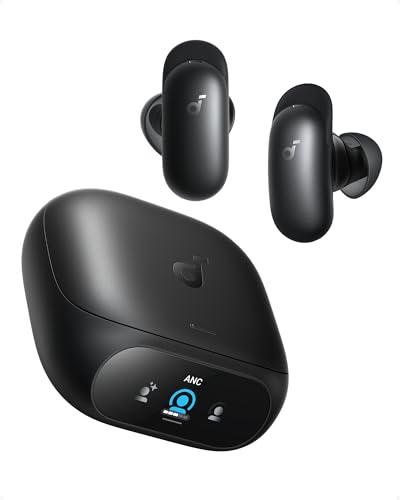
The Soundcore Liberty 5 Pro represents Anker’s most ambitious true wireless earbud to date. Built around the proprietary Thus™ AI chip, these earbuds deliver adaptive noise cancellation that adjusts in real time, a Guinness World Records-certified call quality system, and deep customization through the Soundcore app. The 10-hour single-charge battery life (ANC off) with up to 40 hours total with the case is competitive with flagship offerings from Sony and Apple.
Pros: Verified reviewers consistently praise the call quality as a genuine leap forward — colleagues and family members reportedly notice the difference immediately. The ANC is described as strong and effective, particularly against sustained low-frequency noise. The Soundcore app’s EQ customization and HearID personalization receive high marks for depth and usability. Multipoint Bluetooth connection works reliably across devices. Build quality and case design feel premium.
Cons: Some reviewers note that the earbuds are slightly larger than competitors, which can cause discomfort during very long sessions (4+ hours) for users with smaller ears. A few users report that the touch controls are overly sensitive out of the box, though this is mitigable through app customization. The default sound signature leans warm, which may not appeal to listeners who prefer a brighter, more analytical tuning without EQ adjustment.
Who should buy these: Remote workers who spend hours on calls, commuters battling noisy environments, and audio enthusiasts who enjoy tweaking EQ settings. If call quality is your top priority in a wireless earbud, the Liberty 5 Pro’s Guinness-certified performance makes it a compelling choice.

Quick-Reference Setup Checklist
Use this checklist to make sure you haven’t missed anything:
- [ ] Unbox and verify all components
- [ ] Fully charge the case and earbuds
- [ ] Pair via Bluetooth
- [ ] Download the Soundcore app
- [ ] Check for firmware updates
- [ ] Run the ear tip fit test
- [ ] Configure ANC preferences
- [ ] Run HearID and customize EQ
- [ ] Customize touch controls
- [ ] Set up multipoint connection (if using two devices)
- [ ] Test call quality
How We Research
This guide was compiled by synthesizing Anker/Soundcore’s official product documentation, published technical specifications, and common themes from verified customer and expert reviews across major retail and audio-enthusiast platforms. We have not personally tested, owned, or handled the Soundcore Liberty 5 Pro. Our goal is to provide an honest, thoroughly researched walkthrough that saves you time and helps you get the most out of your new earbuds. When we describe a feature’s performance, we’re reporting what the manufacturer claims and what the broader reviewer community has consistently observed — not fabricating first-hand experience.


Leave a Reply